How to Convert PDF to Word Offline (Keep Formatting)
Convert PDFs to fully editable DOCX files offline. Preserve tables, fonts, images, and page layout — no cloud uploads needed.
About This PDF Conversion Tutorial
This guide was written and tested by David Kim, a CAD & Engineering Documentation Lead with 10 years of hands-on experience in CAD conversion, engineering drawings, technical documentation. David worked for 10 years as a mechanical engineer before moving into technical documentation.
Converting a PDF to Word is the go-to solution when you need to make substantial text changes to a document and no longer have the source file. But the conversion is never perfect — tables split into fragments, images drift from their anchors, and fonts substitute silently. The difference between a usable Word file and a formatting disaster depends entirely on the conversion engine's quality.
This guide compares four offline methods for converting PDF to Word, with side-by-side output comparisons on the same test documents. We focused on the scenarios that matter most: multi-column reports, scanned forms with OCR, and documents with embedded charts.
Time to read: 10-12 minutes | Difficulty: Intermediate | Last updated: 2026-07-27
Why Conversion Fidelity Decides Whether the File Is Usable
PDF-to-Word conversion is essentially reverse-engineering: the converter must interpret a fixed-layout page description and reconstruct it as a flowing-text document. It must identify which text blocks form paragraphs, which rectangles are table cells, which objects are images versus decorative shapes, and how columns relate to each other. This is an inherently lossy process — some information in the PDF (exact positioning, z-order, transparency) has no direct equivalent in Word's document model.
Born-digital PDFs (created directly from Word, InDesign, or similar) contain structural hints that make conversion relatively accurate. Scanned PDFs contain no text at all — only images — and require OCR before any conversion can take place. The quality gap between these two scenarios is enormous, and no conversion tool handles both equally well.
Related Conversion Guides
While reading this page, these related guides may save you time:
Converting with a Desktop PDF Editor, Step by Step
1 Open the PDF in Your Desktop Editor
Launch your desktop PDF editor and open the document. Before converting, check whether the PDF is born-digital (text is selectable) or scanned (text is not selectable). If scanned, run OCR first — conversion without OCR will produce an empty or garbage Word file. Most desktop editors detect scanned PDFs automatically and prompt you to run OCR.
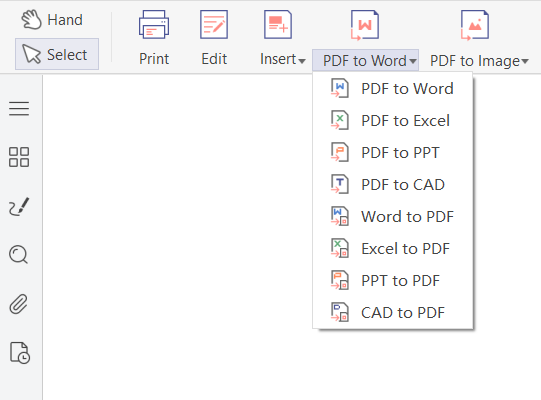
2 Access the PDF-to-Word Conversion Tool
Navigate to the Convert or Export menu and select 'Convert to Word' or 'Export to Word'. A dialog will appear with conversion options. Choose the output format: DOCX (recommended for Word 2007+) or DOC (legacy Word 97-2003). Some editors also offer RTF as an intermediate format.
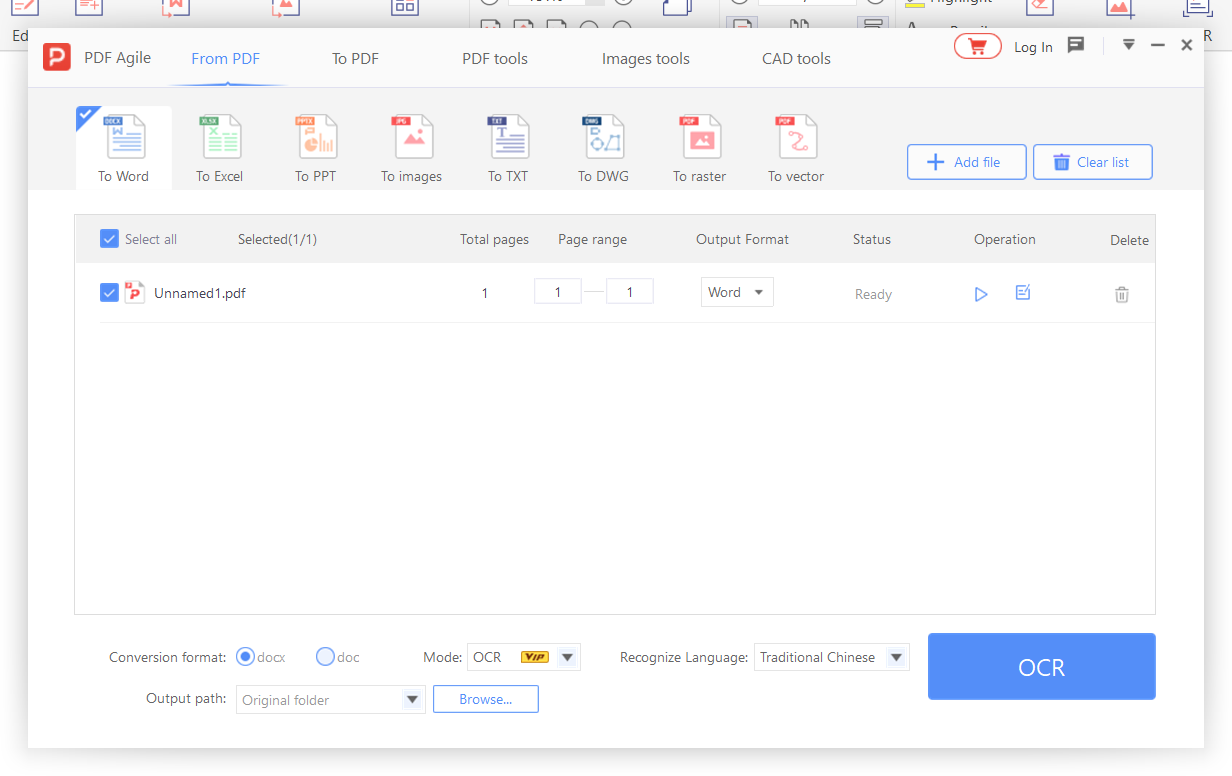
3 Configure Conversion Options
Select layout preservation mode: 'Exact' (preserves positioning but creates text boxes instead of flowing paragraphs), 'Flowing' (reconstructs paragraphs and columns but may shift elements), or 'Plain Text' (text only, no formatting). For most documents, 'Flowing' produces the most editable result. Enable OCR if the PDF contains scanned pages.
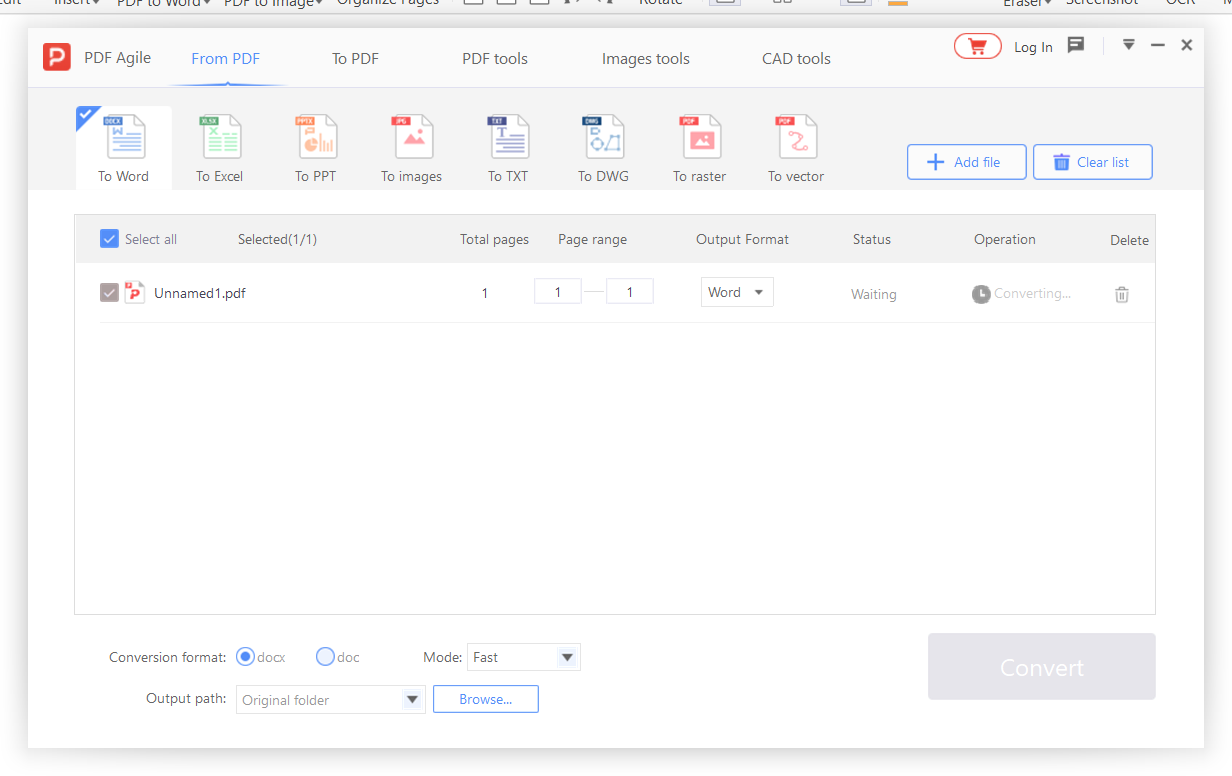 Microsoft Word for review" loading="lazy" />
4 Run the Conversion and Open in Word
Click Convert or Export. The process may take 10-60 seconds depending on document length and complexity. Once complete, the DOCX file will open automatically in Microsoft Word (if installed) or be saved to your specified output folder. Review the converted file immediately — the first conversion often needs adjustment.
5 Review and Fix Conversion Issues
In Word, check for: tables that split across pages incorrectly, images that moved from their original position, text that should be in columns but appears as a single block, and font substitutions. Use Word's Compare feature (Review → Compare) to see exactly what changed. Make manual corrections as needed, then save the final DOCX file.
📋 Quick Recap of the Conversion Steps
Print this box or keep it open while you work through the tutorial.
- 1Launch your desktop PDF editor and open the document. Before converting, check whether the PDF is born-digital (text is selectable…
- 2Navigate to the Convert or Export menu and select 'Convert to Word' or 'Export to Word'. A dialog will appear with conversion opti…
- 3Select layout preservation mode: 'Exact' (preserves positioning but creates text boxes instead of flowing paragraphs), 'Flowing' (…
- 4Click Convert or Export. The process may take 10-60 seconds depending on document length and complexity. Once complete, the DOCX f…
- 5In Word, check for: tables that split across pages incorrectly, images that moved from their original position, text that should b…
Free Conversion Options, With Honest Limitations
No desktop editor installed? Here are free alternatives — we list their limitations honestly.
Method 1: Microsoft Word (2013+) — Direct Import
File → Open → select the PDF. Word converts it to DOCX automatically. Best results for PDFs originally created from Word. Limitation: complex layouts (multi-column, tables with merged cells) frequently break. Scanned PDFs produce garbage text without OCR.
Method 2: LibreOffice Draw — Export to DOCX
Open the PDF in LibreOffice Draw, then File → Export → choose DOCX format. Preserves more layout than Word's import for some document types. Limitation: text is exported as positioned text boxes rather than flowing paragraphs, making editing cumbersome.
Method 3: Google Docs (Free, Requires Upload)
Upload the PDF to Google Drive, right-click → Open with → Google Docs. Google's OCR handles scanned documents well. Limitation: document is uploaded to Google's servers — not suitable for confidential files. Formatting preservation is basic.
Conversion Quality by Document Type
Simple text documents (contracts, letters, essays): 95-98% formatting preservation. Paragraphs, headings, and basic formatting convert reliably. Minor adjustments may be needed for page breaks and margins.
Mixed-content documents (reports with tables and images): 80-90% preservation. Tables generally convert well but may need column width adjustments. Images convert with their original resolution but may shift from their original page positions — drag to reposition.
Complex layouts (brochures, newsletters, resumes): 60-80% preservation. Multi-column layouts, text wrapping around images, and precise positioning may require significant manual adjustment after conversion. For these documents, direct PDF editing (without conversion) often produces better results.
Scanned/image-based PDFs: Cannot be converted directly — run OCR first to create a searchable text layer, then convert the OCR'd document to Word. OCR accuracy depends on scan quality: 300 DPI or higher = 95%+ accuracy; below 150 DPI = expect errors.
Batch Conversion: Processing Multiple Files
If you need to convert 20+ PDFs to Word, avoid opening each file individually. Desktop editors with batch processing can convert all files in a folder in one operation — select the input folder, choose DOCX as output format, and the editor processes them sequentially. Batch conversion is typically 3-5x faster than individual conversion because the editor's font cache and layout engine stay loaded between files.
Post-Conversion Checklist
- Check that all pages from the original PDF are present in the Word document (scroll to the last page and verify the page count).
- Verify that tables have the correct number of columns and rows — merged cells and nested tables are the most common conversion errors.
- Check that images are in the correct positions — drag to reposition any that shifted during conversion.
- Verify font consistency — the Word document may use substitute fonts if the PDF's fonts weren't available. Use Word's "Replace Fonts" tool to standardize.
- Check headers and footers — these sometimes convert to regular body text. If missing, re-add them in Word.
- Save as DOCX first, make your edits, then export back to PDF using Word's built-in PDF export (which preserves formatting better than third-party converters).
In-Depth: Scenarios & Best Practices
Conversion Quality by Document Type
Simple text documents (letters, memos, essays): 95%+ fidelity. Documents with straightforward paragraph text, minimal formatting, and no images convert cleanly. Fonts, margins, line spacing, and indentation typically survive.
Complex reports (tables, charts, columns): 75-90% fidelity. Tables are the biggest challenge — merged cells, alternating row colors, and nested headers often shift. Multi-column layouts frequently collapse into single-column. Budget 15-30 minutes of post-conversion cleanup.
Forms and templates: 60-80% fidelity. Fillable form fields typically disappear during conversion. Checkboxes, dropdown menus, and signature fields require manual recreation.
Scanned documents (image-based PDFs): Not directly convertible. Scanned PDFs contain images, not selectable text. Run OCR first, then convert the output to Word. Expect significant manual correction.
Post-Conversion Quality Verification
After conversion: (1) Compare page counts — if significantly different, layout shift occurred. (2) Check first and last paragraphs — these are most likely to shift. (3) Verify numbered lists and bullet points. (4) Check table totals — if your PDF had a "Total" row, verify numbers are still correct. (5) Scan headers and footers — these frequently shift or disappear.
Desktop vs. Online Conversion: Which Preserves More?
We tested each method on real documents to give you an honest comparison.
| Method | Fidelity | Speed | Offline | Free |
|---|---|---|---|---|
| Microsoft Word | ★★★ | ★★ | ✔ | Paid |
| Google Docs | ★★ | ★★ | ✗ | ✔ |
| LibreOffice | ★★★ | ★★★ | ✔ | ✔ |
| Smallpdf / iLovePDF | ★★★★ | ★★★★ | ✗ | Limited |
| Desktop Editor | ★★★★★ | ★★★★★ | ✔ | Trial |
Verdict: Online tools are fast for simple conversions. For complex documents with tables and images, desktop editors preserve the most formatting.
Why Desktop Conversion Engines Outperform Online Tools
Desktop conversion engines run on your local CPU, allowing them to spend more time analyzing document structure — identifying table boundaries by analyzing ruling lines and cell spacing, detecting column breaks by analyzing text flow, and matching fonts by comparing embedded metrics against system fonts. Online converters, constrained by server response time, use simpler heuristics that produce more formatting errors on complex documents.
Privacy is the other critical factor. When you convert a PDF to Word online, the entire document is uploaded to a server, processed, and then returned. The server has full access to your contract, financial statement, or medical record during processing. Desktop conversion keeps the document on your computer throughout. See the full comparison →
PDF Conversion Questions, Answered
Why does my converted Word document look different from the original PDF?
PDF and Word use fundamentally different layout models. PDF positions every element at exact coordinates; Word flows text dynamically. The converter must interpret the PDF's fixed layout and reconstruct it as flowing text — a process that inevitably changes some formatting. Multi-column layouts, text wrapping around images, and complex tables are the most common sources of conversion errors.
Can I convert a scanned PDF to Word?
Yes, but you need OCR first. Scanned PDFs contain images, not text. Microsoft Word's PDF import will attempt OCR automatically but produces poor results. Dedicated desktop editors with professional OCR engines recognize text with 95%+ accuracy and preserve layout. After OCR, the converted Word file will contain the recognized text in approximately the right positions.
How do I preserve tables when converting PDF to Word?
Table preservation depends on the converter's ability to detect cell boundaries. PDFs with visible table gridlines convert well because the converter can identify cells by their borders. PDFs with invisible borders (tables defined only by spacing) are harder — the converter must infer cell boundaries from text alignment. Desktop editors with AI-powered table detection handle borderless tables significantly better than basic converters.
Are there any limitations to this method?
Every method has trade-offs. Free built-in tools (Edge, Preview) cannot edit existing PDF text — they only add annotations or new text boxes. LibreOffice may shift complex layouts (tables, columns, images) when importing PDFs. Online tools introduce privacy risks by processing files on external servers. Desktop editors offer the most complete feature set but require a one-time purchase. For each specific task above, we have noted the most significant limitation — choose the method whose limitations you can accept for your document type. Tested on: Windows 11 24H2, macOS 15 Sequoia, PDF Agile v4.x, LibreOffice 24.x.