How to Edit PDF: Complete Step-by-Step Guide
Comprehensive guide on how to edit PDF files. Covers every method from built-in OS tools to professional desktop editors.
What This PDF Editing Guide Covers
This guide was written and tested by Sarah Mitchell, a Document Design Specialist with 6 years of hands-on experience in typography, layout design, publishing workflows. Sarah spent 6 years as a layout designer at a major publishing house before transitioning to digital document consulting.
PDF editing covers a wide spectrum — from fixing a single typo in a contract to restructuring a multi-column annual report. Most people only discover they need to edit a PDF when they no longer have the source file, which means the editing tool must work directly on the PDF's internal structure rather than converting it to another format and back.
This guide walks through every viable approach: built-in OS tools for quick fixes, free open-source editors for moderate edits, conversion-based workflows for full document rewrites, and desktop PDF editors for professional-grade changes. We tested each method on contracts, resumes, brochures, and scanned documents to map out exactly where each approach succeeds and where it fails.
Time to read: 10-12 minutes | Difficulty: Intermediate | Last updated: 2026-07-27
Why Editing a PDF Correctly Is Harder Than It Looks
The PDF format was created by Adobe in 1993 as a final-output format — a digital print plate that looks identical on every device. Editing was never part of the original design. Every character in a PDF is stored as a positioned glyph with exact x/y coordinates, not as part of a flowing text stream like in Word. This is why editing PDFs feels fundamentally different from editing documents: there are no paragraphs to reflow, no styles to inherit, and no automatic pagination.
Modern PDF editors bridge this gap by adding a layer of intelligence on top of the raw PDF structure. They detect text runs that form paragraphs, identify font subsets for matching, and simulate reflow within text blocks. The quality of this intelligence layer is what separates a good PDF editor from a poor one — and it is why some methods produce seamless edits while others leave visible artifacts.
Related Editing Guides Worth Reading
While reading this page, these related guides may save you time:
Editing the PDF Step by Step with a Desktop Editor
1 Choose Your Editing Method Based on Document Type
Assess what needs editing: if you only need to add annotations (highlights, comments, signatures), use Microsoft Edge or macOS Preview. If you need to change existing text, use LibreOffice Draw for simple documents or a desktop PDF editor for complex layouts. If you need a full document rewrite, convert to Word, edit, and re-export. Match the tool to the task to avoid unnecessary formatting problems.
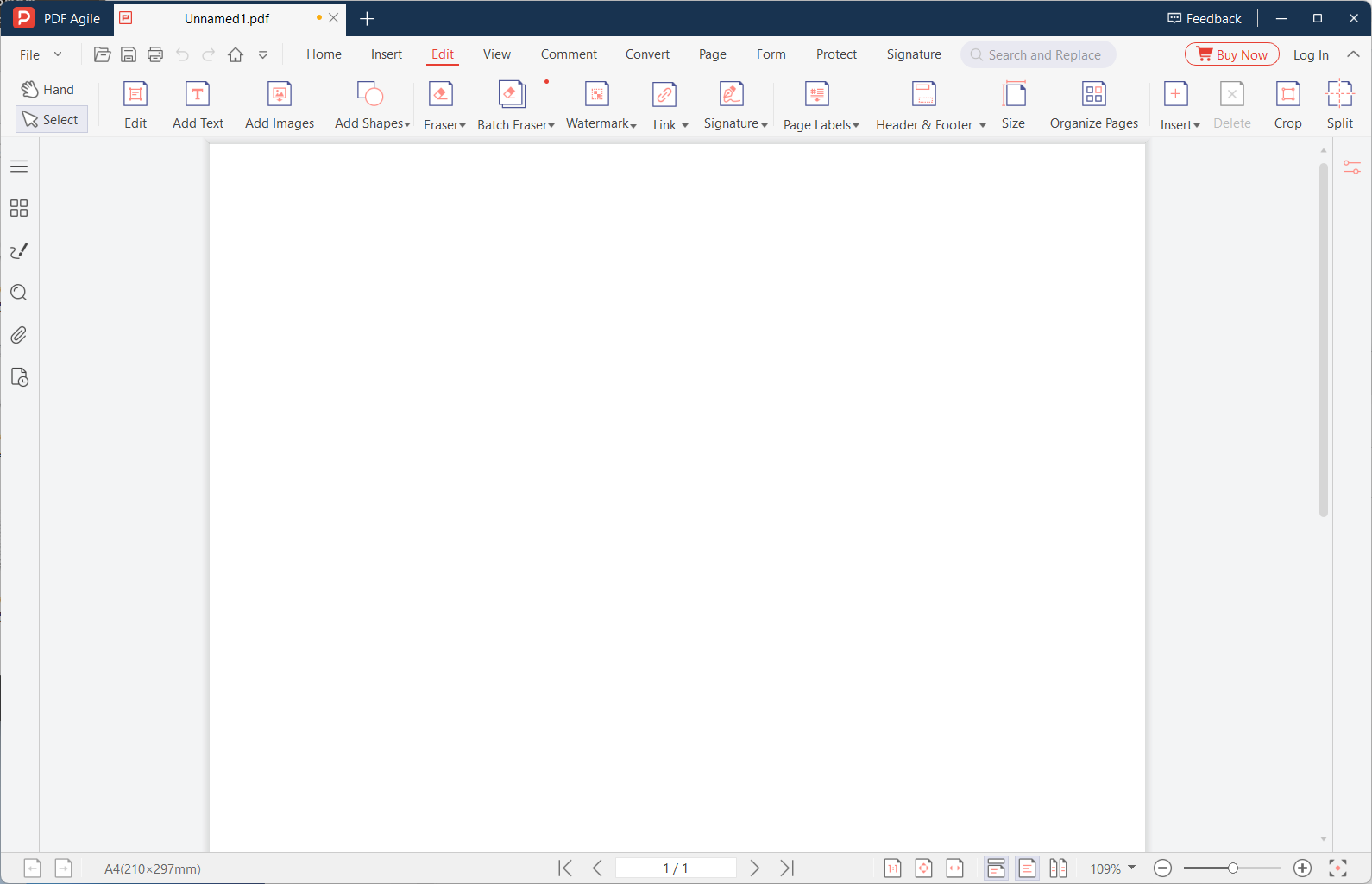
2 Open the PDF in Your Chosen Editor
For Edge: right-click the PDF → Open with → Microsoft Edge. For Preview: double-click the PDF. For LibreOffice Draw: File → Open → select the PDF. For desktop editors: launch the application, then drag the PDF into the window or use File → Open. If the PDF is password-protected, enter the password when prompted.
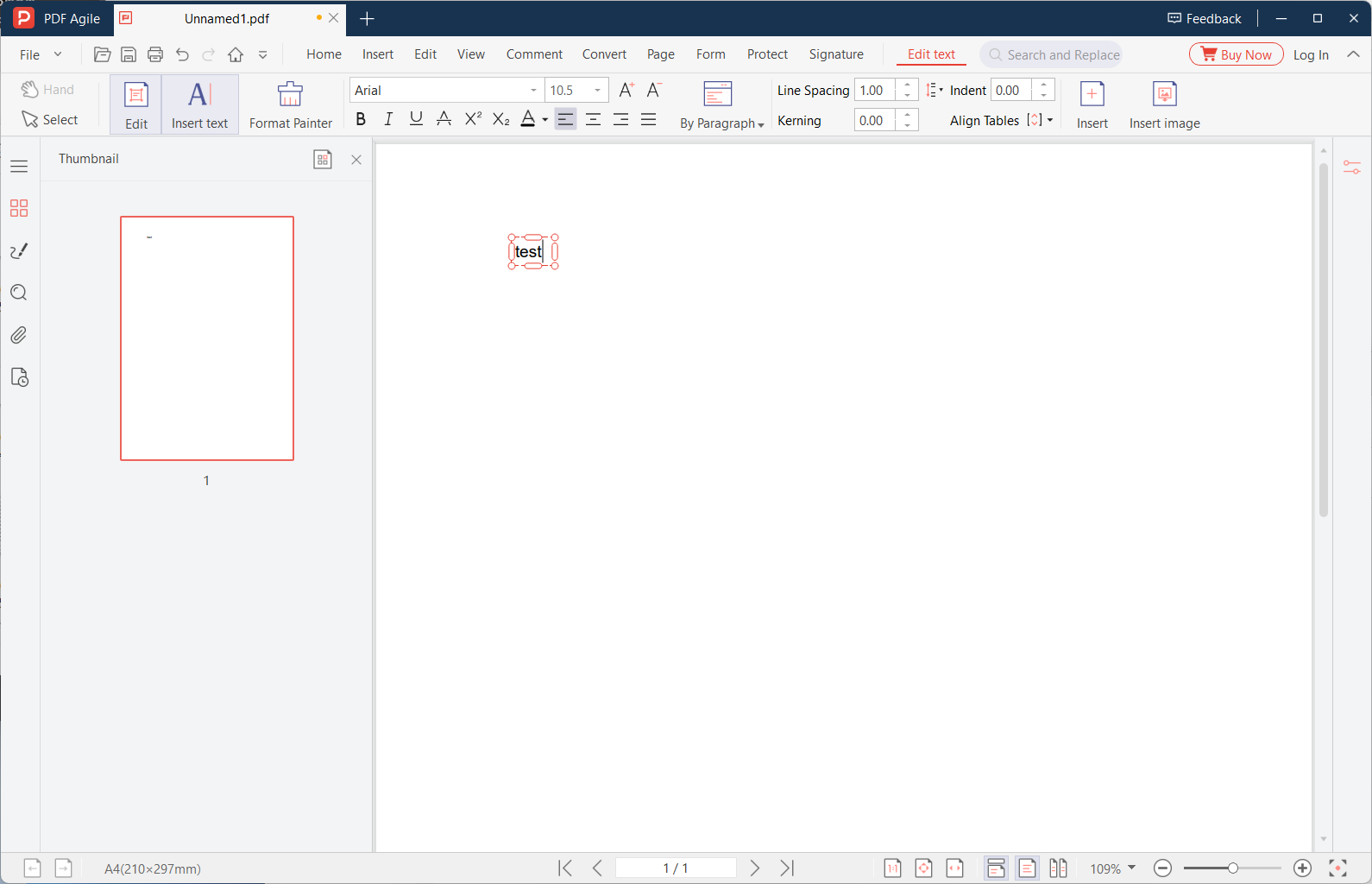
3 Make Your Edits in the Appropriate Mode
In desktop editors, switch to Edit mode to modify text and images. Click on any text block to edit it — the editor will display a bounding box around the editable area. For annotations, switch to Comment mode. For page operations (reorder, delete, insert), use the Organize Pages view. Work in the correct mode to avoid accidentally mixing edits with annotations.
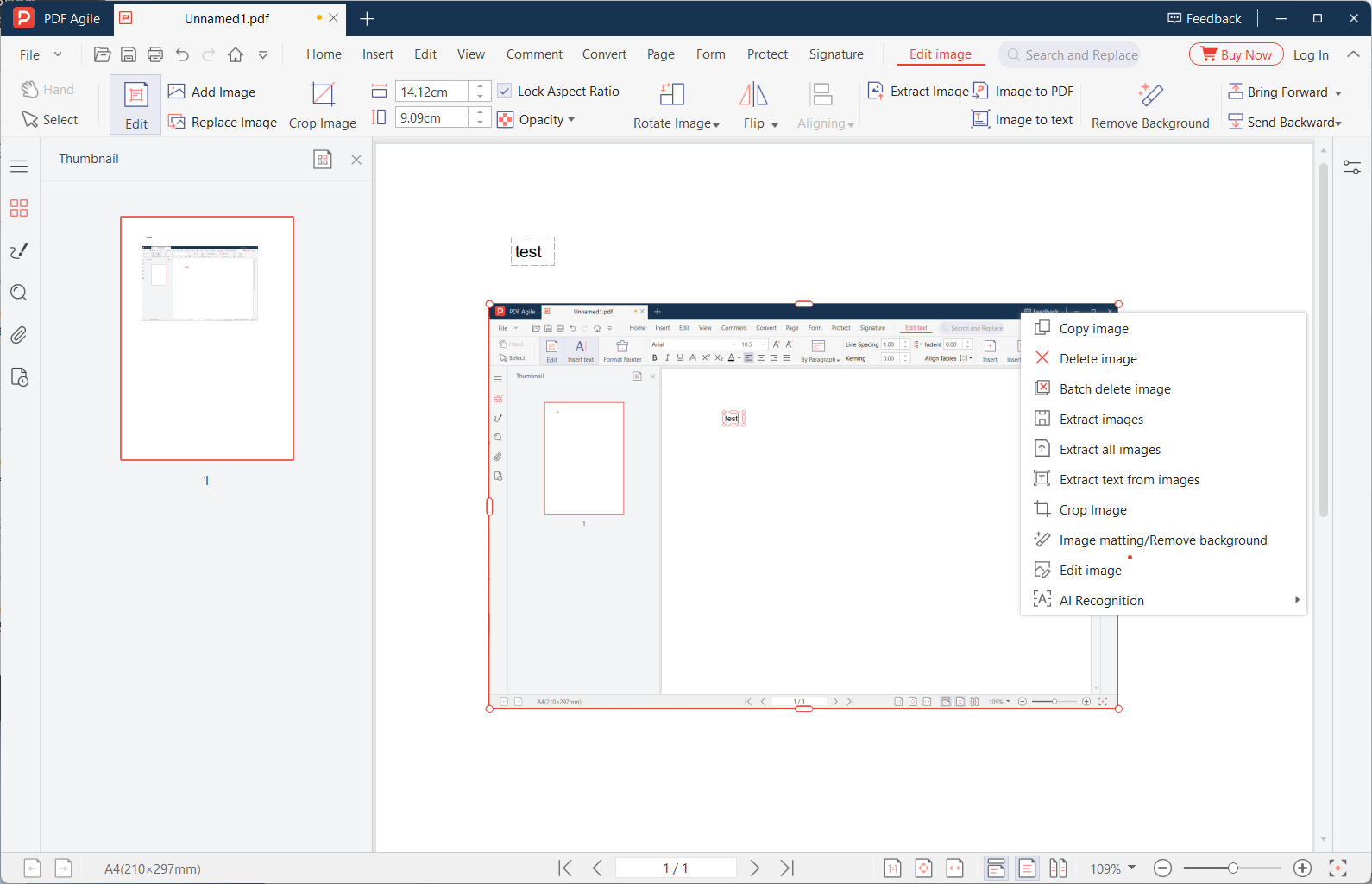
4 Review Every Page for Side Effects
After editing, scroll through the entire document. Check for: text overflow beyond page margins, font mismatches where you edited text, shifted images or tables, broken hyperlinks, and missing headers or footers. Zoom to 150% to inspect details. Pay special attention to pages adjacent to your edits — sometimes changes cascade in unexpected ways due to the PDF's object structure.
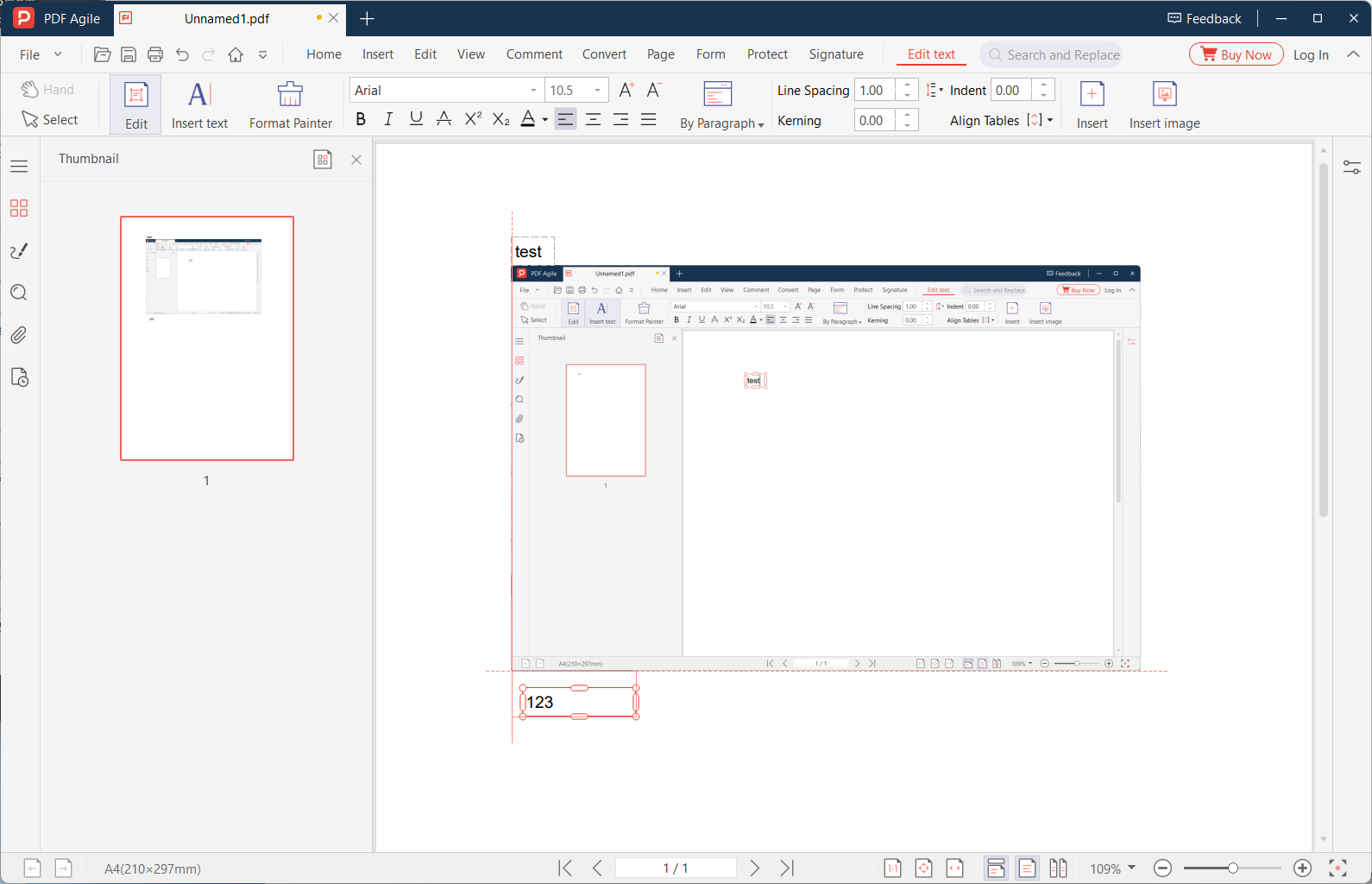
5 Save, Verify, and Test the Output
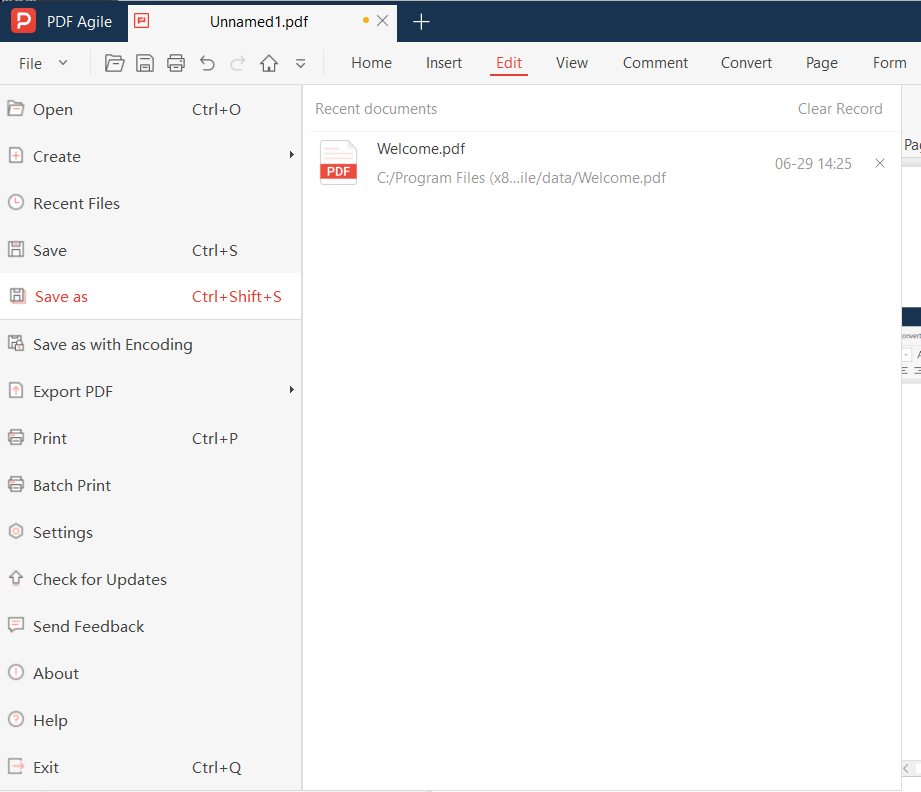
Use Save As to create a new file, preserving the original as a backup. Open the saved file in a different PDF reader (not the editor you used) to verify all changes appear correctly. Check file properties to confirm metadata is accurate. If the document will be printed, do a test print of the edited pages to catch any color or margin issues that only appear in print.
📋 Quick Recap of the Editing Steps
Print this box or keep it open while you work through the tutorial.
- 1Assess what needs editing: if you only need to add annotations (highlights, comments, signatures), use Microsoft Edge or macOS Pre…
- 2For Edge: right-click the PDF → Open with → Microsoft Edge. For Preview: double-click the PDF. For LibreOffice Draw: File → Open →…
- 3In desktop editors, switch to Edit mode to modify text and images. Click on any text block to edit it — the editor will display a …
- 4After editing, scroll through the entire document. Check for: text overflow beyond page margins, font mismatches where you edited …
- 5Use Save As to create a new file, preserving the original as a backup. Open the saved file in a different PDF reader (not the edit…
Free Ways to Edit a PDF (and Where They Fall Short)
No desktop editor installed? Here are free alternatives — we list their limitations honestly.
Method 1: Microsoft Edge (Windows 10/11)
Open any PDF in Edge by right-clicking and selecting Open with → Microsoft Edge. The toolbar provides Add Text, Draw, Highlight, and Erase tools. Limitation: cannot modify existing text — only adds annotations on top of the page.
Method 2: Preview (macOS)
Open the PDF and click the Markup Toolbar icon. Add text boxes, shapes, signatures, and highlights. Resize and reposition annotations freely. Limitation: same as Edge — cannot edit the original text content, only overlay annotations.
Method 3: LibreOffice Draw (Free, Cross-Platform)
Opens PDFs as editable vector objects. Click any text block to edit its content directly. Handles simple documents well. Limitation: complex layouts with multiple columns, tables, or embedded fonts often shift during editing. Best for simple text-only PDFs.
Method 4: Microsoft Word (2013+)
File → Open → select PDF. Word converts it to DOCX, lets you edit, then File → Save As → PDF. Limitation: conversion quality varies — tables, columns, and custom fonts frequently break. Best for text-heavy documents with simple formatting.
Real-World Editing Examples
Example 1: Fixing a typo in a contract. You've signed a 15-page service agreement when you notice "effective date: Jan 2026" should be "Jan 2027." Open the PDF in a desktop editor, click the date text, type "2027" — the surrounding text and formatting remain untouched. The edit takes 5 seconds versus re-printing, re-signing, and re-scanning all 15 pages.
Example 2: Updating your resume for a specific job. You need to add a relevant project to your experience section without the resume stretching to a third page. In a desktop editor, add the new bullet point, then reduce the spacing before older entries by 2pt to compensate — the resume stays on two pages, and the layout is pixel-perfect.
Example 3: Correcting product specifications in a datasheet. The engineering team updated the power rating from 500W to 550W across a 20-page product datasheet. A desktop editor's Find & Replace function updates all 14 instances across all 20 pages in one operation, with font matching ensuring the new value looks identical to surrounding text.
Common Editing Errors (And How to Avoid Them)
Error 1: Font substitution. You edit text and the new words appear in a different font. Fix: Before editing, click unmodified text near your target to identify the active font. If that font isn't installed on your system, a desktop editor will attempt to match it — but the match may not be perfect. For critical documents, install the required font first.
Error 2: Layout shift. Adding text pushes content to an unwanted extra page. Fix: After editing, immediately check the page count in the editor's status bar. If pages increased, reduce font size by 0.5pt, tighten paragraph spacing, or shorten less critical content to compensate.
Error 3: Accidental text box creation. Clicking in empty space creates a new text box instead of editing existing text. Fix: In most editors, switch to "Edit Text" mode (not "Add Text" mode) and click directly on existing text to edit it. Look for a text cursor (I-beam) rather than a crosshair.
Error 4: Vector text damage. In some PDFs, text is stored as vector outlines (common in Canva and Illustrator exports). Fix: Vector text cannot be edited character by character — you must delete the entire text object and replace it with a new text box. Check if text is vector by trying to select individual characters; if you can only select the entire word, it's vector text.
In-Depth: Scenarios & Best Practices
Real-World Editing Scenarios
Fixing a typo in a signed contract. You have a PDF contract already signed by both parties, but you notice a typo in the address field. Desktop editors let you click directly on the text, fix the typo, and save — without affecting signatures, dates, or surrounding text. The document's legal integrity remains intact because the PDF's internal structure preserves signature objects independently from text objects.
Updating quarterly numbers in a financial report. A 40-page quarterly report needs revenue figures updated across 5 tables. A desktop editor with Find and Replace handles this in one operation: search for the old figure, replace with the new figure across all pages. Verify each change with the preview panel before committing.
Removing a confidential paragraph before sharing. A project proposal contains a confidential budget breakdown on page 3. Use the Erase or Redact tool to permanently delete the text block. The surrounding content stays in position — no reflow, no reformatting.
Common Editing Mistakes to Avoid
Drawing white boxes over text instead of deleting it. A white rectangle visually hides text but does not remove it from the PDF content stream. Anyone can select the area, copy the hidden text, or search for keywords underneath. Always use Edit or Erase mode — never the drawing tool — when you need to actually remove content.
Editing a PDF from email without saving first. Email attachments often open in browser-based viewers with limited editing. Always save the PDF to your desktop first, then open in a dedicated editor. Browser viewers frequently lose edit state or corrupt embedded fonts during inline edits.
Forgetting to verify output on a different reader. A PDF that looks perfect in your editor may render differently in Adobe Reader, browser viewers, or mobile apps. After editing, open the file in at least one alternative reader to verify fonts, spacing, and images appear correctly across platforms.
Free Tools vs. a Desktop Editor for This Edit
We tested each method on real documents to give you an honest comparison.
| Method | Edit Text | Layout | Offline | Free |
|---|---|---|---|---|
| Microsoft Edge | New only | ★★★ | ✔ | ✔ |
| macOS Preview | New only | ★★★ | ✔ | ✔ |
| LibreOffice Draw | Full | ★★ | ✔ | ✔ |
| Microsoft Word | Full | ★★ | ✔ | Paid |
| Desktop Editor | Full | ★★★★ | ✔ | Trial |
Verdict: For occasional edits, Edge or Preview work well. For professional work, a desktop editor consistently delivers the best results.
Why Desktop Editing Delivers the Best Results
Desktop PDF editors invest heavily in their content analysis engine — the component that interprets the PDF's raw object structure and presents it as an editable document. This engine runs on your local CPU, which means it can spend more time analyzing font metrics, detecting table structures, and identifying paragraph boundaries. Online editors, constrained by server response time limits, use simpler analysis that produces more formatting errors.
Desktop editors also provide the full editing toolset in one application: text editing, image manipulation, page organization, annotation, form filling, OCR, and security features. Online tools typically offer one or two of these at a time, forcing you to upload the same document to multiple services for different editing tasks — each upload exposing your file to a different server. See the full comparison: privacy, speed, features, and cost →
Editing PDFs: Common Questions, Answered
What is the difference between editing a PDF and converting it to Word?
Editing a PDF modifies the document's internal content directly — text objects, images, and page structure are changed in place. Converting to Word reconstructs the document from scratch in Word's format, which can introduce formatting changes but gives you full word-processing capabilities. Direct editing preserves layout better; conversion gives you more editing freedom but less layout fidelity.
Can I edit a PDF that was created from a scanned document?
Scanned PDFs contain images, not text — there is nothing to edit directly. You need OCR (Optical Character Recognition) to convert the scanned images into selectable, editable text. Desktop editors with built-in OCR can process the entire document in one operation. Free tools like Tesseract OCR work but require command-line usage and produce plain text, not formatted output.
Will editing a PDF reduce its quality or cause formatting issues?
Direct PDF editing (using a desktop editor's text edit mode) preserves quality because it modifies only the targeted text objects. Conversion-based methods (PDF to Word and back) typically cause formatting drift — fonts change, tables shift, and images move. The more complex the original layout, the more likely conversion will introduce visible differences.
Are there any limitations to this method?
Every method has trade-offs. Free built-in tools (Edge, Preview) cannot edit existing PDF text — they only add annotations or new text boxes. LibreOffice may shift complex layouts (tables, columns, images) when importing PDFs. Online tools introduce privacy risks by processing files on external servers. Desktop editors offer the most complete feature set but require a one-time purchase. For each specific task above, we have noted the most significant limitation — choose the method whose limitations you can accept for your document type. Tested on: Windows 11 24H2, macOS 15 Sequoia, PDF Agile v4.x, LibreOffice 24.x.