How to Extract Pages from PDF Offline
Extract single pages, page ranges, or split large PDFs into smaller files. Fast offline extraction in seconds — no page limits.
What This PDF Editing Guide Covers
This guide was written and tested by Maria Torres, a Data & Research Analyst with 7 years of hands-on experience in data extraction, OCR, table conversion, research workflows. Maria has 7 years of experience extracting and analyzing data from PDF reports at a market research firm.
Extracting specific pages from a 300-page contract for a client meeting, pulling individual chapters from a textbook for course materials, or separating signed forms from a packet — page extraction is a precision task that most tools handle clumsily. The common problems are predictable: extracted pages lose their bookmarks, page numbers reset to 1, or the extracted file carries metadata from the full document.
This guide covers four methods for extracting pages from PDFs offline, focusing on the details that determine whether the extracted file is a clean standalone document or a broken fragment. We tested each on legal exhibits, academic papers, and multi-section manuals.
Time to read: 5-7 minutes | Difficulty: Beginner to Intermediate | Last updated: 2026-07-22
Why Editing a PDF Correctly Is Harder Than It Looks
Page extraction creates a new PDF containing only the selected pages from the source document. The extracted pages retain their original content — text, images, annotations, and form fields — but the new PDF gets its own page tree, metadata, and bookmark structure. This is different from splitting, which divides a document into multiple files based on a rule (every N pages, by bookmarks).
The key consideration is what happens to bookmarks and internal links. If the source PDF has bookmarks pointing to pages both inside and outside the extracted range, those external bookmarks become dead links. Similarly, internal hyperlinks that cross the extraction boundary will break. Desktop editors can clean up these references automatically; simpler tools leave them broken.
Related Editing Guides Worth Reading
While reading this page, these related guides may save you time:
Editing the PDF Step by Step with a Desktop Editor
1 Open the PDF and Navigate to Page View
Launch your desktop PDF editor and open the source document. Open the page thumbnail panel to see all pages as visual previews. Scroll through to identify the pages you want to extract. Note the page numbers — remember that PDF page numbers (shown in the thumbnail panel) may differ from the printed page numbers visible on the pages themselves.
2 Select Pages for Extraction
Click on the first page you want to extract. For a consecutive range, Shift+click the last page. For non-consecutive pages, Ctrl+click each page individually. The selected pages will be highlighted. Double-check your selection by scrolling through the highlighted thumbnails — extracting the wrong pages is the most common error.
3 Choose Extract and Configure Options
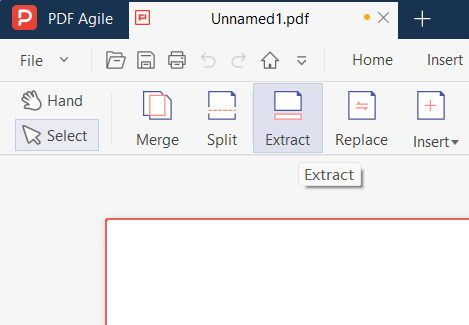
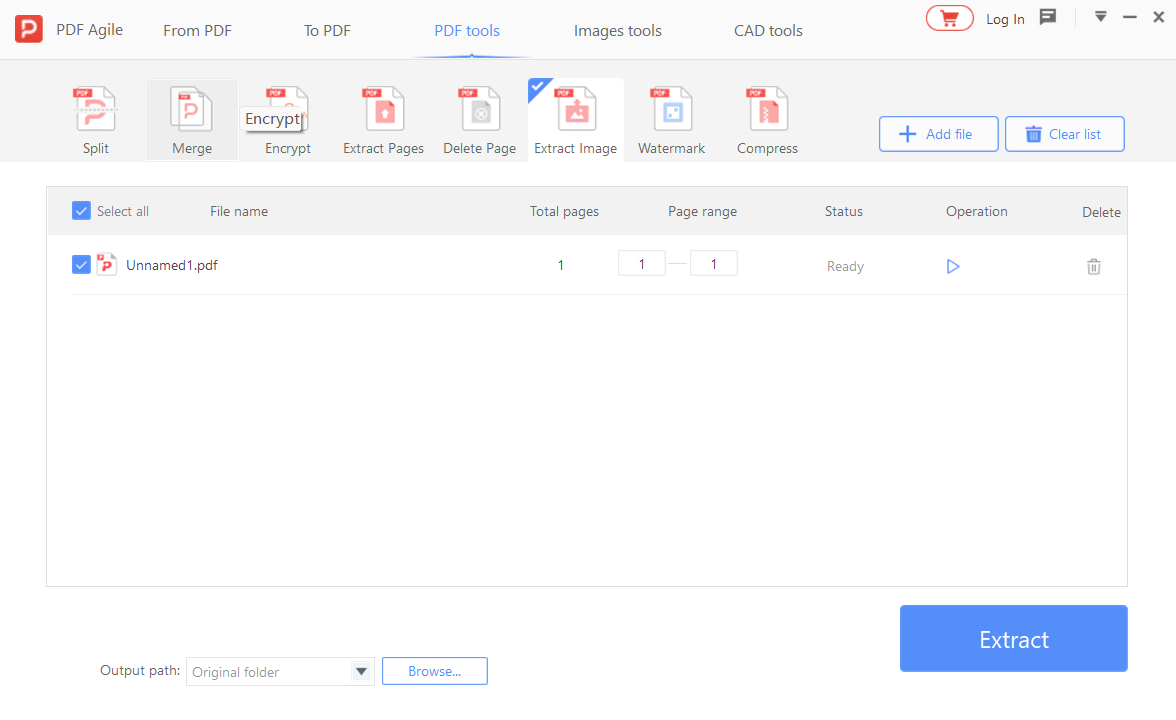
Right-click the selected pages and choose 'Extract Pages' from the context menu, or use the Extract button in the toolbar. In the extract dialog, choose: output as a single file or separate files per page; whether to delete the extracted pages from the source document; and whether to clean up bookmarks and links that reference excluded pages.
4 Review the Extracted File
The extracted PDF opens in a new tab or window. Scroll through every page to verify: all intended pages are present in the correct order, no extra pages were included, page content is intact (text, images, annotations), and bookmarks navigate only to pages within the extracted file. Check file properties to verify metadata.

5 Save and Name the Extracted File
Save the extracted file with a descriptive name that indicates its source and content — for example, 'Contract_Exhibit_A_pages_12-18.pdf' rather than 'extracted.pdf'. If you chose to delete pages from the source document, save the source document as well, or use Save As to preserve the original. Verify the source document's page count to ensure pages were removed correctly.
📋 Quick Recap of the Editing Steps
Print this box or keep it open while you work through the tutorial.
- 1Launch your desktop PDF editor and open the source document. Open the page thumbnail panel to see all pages as visual previews. Sc…
- 2Click on the first page you want to extract. For a consecutive range, Shift+click the last page. For non-consecutive pages, Ctrl+c…
- 3Right-click the selected pages and choose 'Extract Pages' from the context menu, or use the Extract button in the toolbar. In the …
- 4The extracted PDF opens in a new tab or window. Scroll through every page to verify: all intended pages are present in the correct…
- 5Save the extracted file with a descriptive name that indicates its source and content — for example, 'Contract_Exhibit_A_pages_12-…
Free Ways to Edit a PDF (and Where They Fall Short)
No desktop editor installed? Here are free alternatives — we list their limitations honestly.
Method 1: Preview (macOS) — Drag and Drop
Open the PDF in Preview, show the sidebar (View → Thumbnails), select the pages you want (Cmd+click for non-adjacent, Shift+click for a range), then drag the selected thumbnails to the Desktop. A new PDF is created with those pages. Limitation: no bookmark cleanup; page numbers are not reset.
Method 2: PDFsam Basic (Free)
Use the Extract function: specify page ranges and output file. Handles large files and multiple extraction ranges. Limitation: no visual preview of selected pages; bookmark handling is basic.
Method 3: Microsoft Edge — Print to PDF
Open the PDF in Edge, press Ctrl+P, enter the page numbers in the Pages field, and select 'Microsoft Print to PDF' as the printer. Limitation: print-to-PDF may alter formatting, reduce image quality, and lose interactive elements like form fields and hyperlinks.
Free Tools vs. a Desktop Editor for This Edit
We tested each method on real documents to give you an honest comparison.
| Method | Edit Text | Layout | Offline | Free |
|---|---|---|---|---|
| Microsoft Edge | New only | ★★★ | ✔ | ✔ |
| macOS Preview | New only | ★★★ | ✔ | ✔ |
| LibreOffice Draw | Full | ★★ | ✔ | ✔ |
| Microsoft Word | Full | ★★ | ✔ | Paid |
| Desktop Editor | Full | ★★★★ | ✔ | Trial |
Verdict: For occasional edits, Edge or Preview work well. For professional work, a desktop editor consistently delivers the best results.
Why Desktop Extraction Preserves Document Integrity
Desktop PDF editors create a clean new page tree for the extracted file, automatically removing bookmarks and internal links that point to excluded pages. They also let you preview the extraction before committing — so you can verify page boundaries and catch any pages that were accidentally included or excluded. For batch extraction (e.g., extracting pages 1-5, 10-15, and 20-25 as separate files), desktop editors process all ranges in one operation.
Online extraction tools typically create a raw page copy without cleaning up references — the extracted file may contain broken bookmarks, dead hyperlinks, and metadata referencing the full document. They also impose file-size limits, making it impossible to extract from large source documents. See the full comparison →
Editing PDFs: Common Questions, Answered
Do extracted pages retain their bookmarks and annotations?
Annotations (highlights, comments, stamps) are retained on extracted pages because they are stored per-page. Bookmarks are a document-level feature — bookmarks pointing to pages within the extracted range are retained, but bookmarks pointing to excluded pages become dead links. Desktop editors can automatically remove dead bookmarks during extraction; free tools leave them, requiring manual cleanup.
Can I extract non-consecutive pages (e.g., pages 1, 5, 12) into a single PDF?
Yes. Desktop editors let you specify non-consecutive page numbers or ranges (e.g., '1, 5, 12-15') in the extract dialog. The pages are assembled in the order you specify, creating a single PDF with those pages in sequence. This is useful for creating custom document sets from a larger source.
Why does my extracted PDF still show the original page numbers instead of starting from 1?
Page numbers visible on the page (in headers or footers) are part of the page content, not dynamic metadata — they remain as they were in the original document. The PDF's internal page numbering (shown in the page panel) does start from 1 for the extracted file. To change visible page numbers, use the header/footer editing tool in a desktop editor after extraction.
Are there any limitations to this method?
Every method has trade-offs. Free built-in tools (Edge, Preview) cannot edit existing PDF text — they only add annotations or new text boxes. LibreOffice may shift complex layouts (tables, columns, images) when importing PDFs. Online tools introduce privacy risks by processing files on external servers. Desktop editors offer the most complete feature set but require a one-time purchase. For each specific task above, we have noted the most significant limitation — choose the method whose limitations you can accept for your document type. Tested on: Windows 11 24H2, macOS 15 Sequoia, PDF Agile v4.x, LibreOffice 24.x.