How to Merge PDF Files Into One Offline
Combine multiple PDF files into one polished document. Drag-and-drop reordering, page management, and instant offline merging.
What This PDF Editing Guide Covers
This guide was written and tested by Luis Garcia, a Small Business Operations Manager with 6 years of hands-on experience in small business, accounting, forms, affordable solutions. Luis runs a small accounting firm where he processes hundreds of client PDFs every tax season.
Combining quarterly reports into an annual summary, merging signed contracts with their exhibits, or assembling a presentation deck from individual PDF slides — merging PDFs is one of the most frequent document tasks. Yet the results are often messy: page numbering resets mid-document, bookmarks from individual files conflict, and page sizes vary between sources.
This guide covers four methods for merging PDF files offline, with attention to the details that determine whether the output looks like a professional document or a stitched-together collection. We tested each on mixed-size documents, files with conflicting bookmark structures, and PDFs created by different applications.
Time to read: 5-7 minutes | Difficulty: Beginner to Intermediate | Last updated: 2026-07-22
Why Editing a PDF Correctly Is Harder Than It Looks
Merging PDFs is more complex than concatenating files. Each source PDF carries its own page tree, font dictionary, and bookmark structure. A proper merge operation creates a unified page tree, deduplicates shared fonts, and reconciles bookmark hierarchies into a single navigation structure. When this reconciliation is done poorly, you get broken bookmarks, missing pages, or fonts that render incorrectly.
The most common merge problem is inconsistent page sizes. When combining a Letter-size report with A4-size appendices from an international team, the merged document should ideally standardize to one size or at least maintain each source's original dimensions without distortion. Desktop editors handle this automatically; simpler tools may stretch or crop pages to match the first file's dimensions.
Related Editing Guides Worth Reading
While reading this page, these related guides may save you time:
Editing the PDF Step by Step with a Desktop Editor
1 Gather and Order Your Source PDFs
Collect all PDF files you want to merge into a single folder. Rename them with numeric prefixes (01_report.pdf, 02_appendix.pdf, etc.) to establish the merge order. This step is important because most merge tools process files in the order they are added, and reordering later can be tedious if you have many files.
2 Open the Merge Tool and Add Files
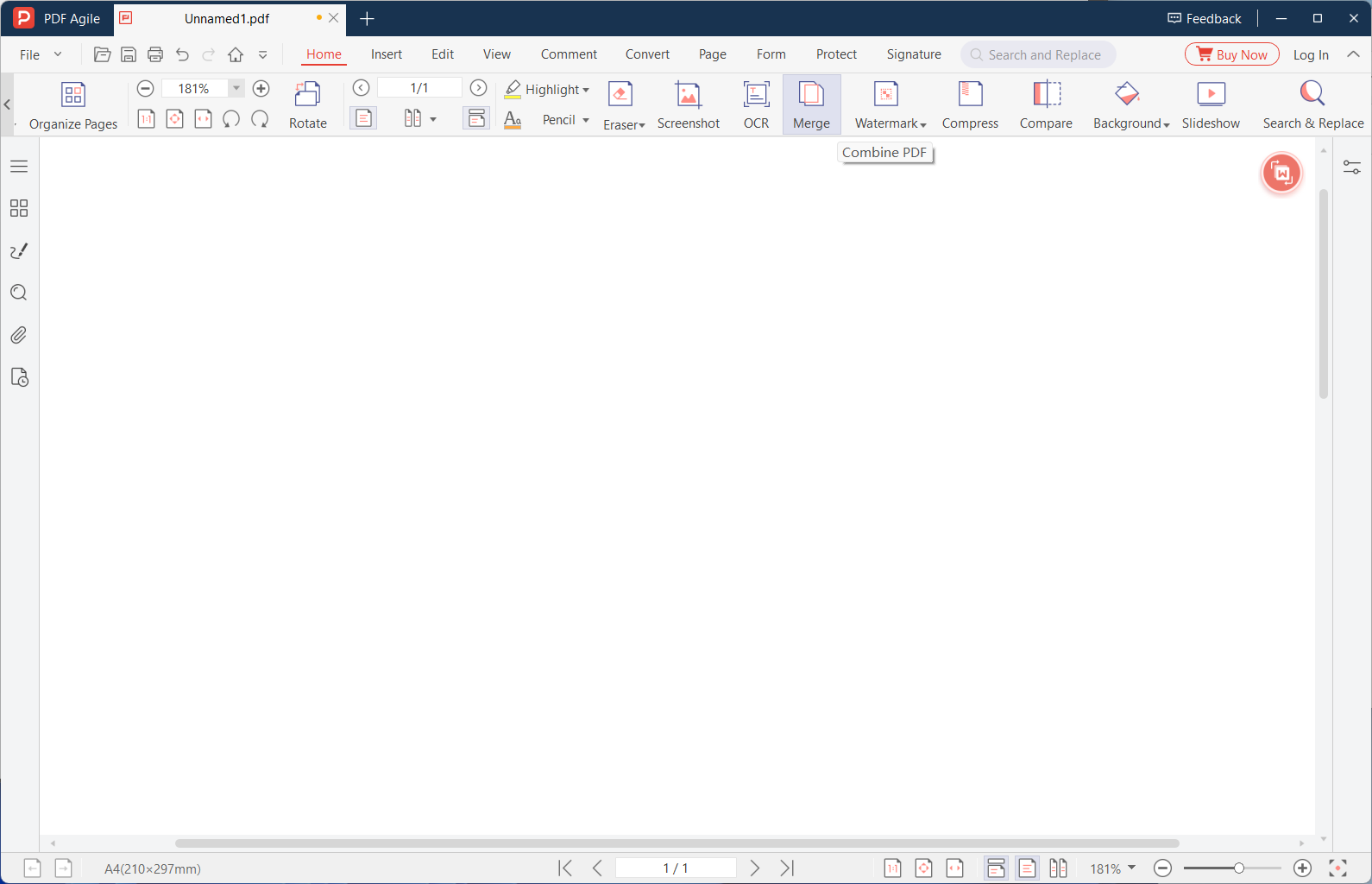
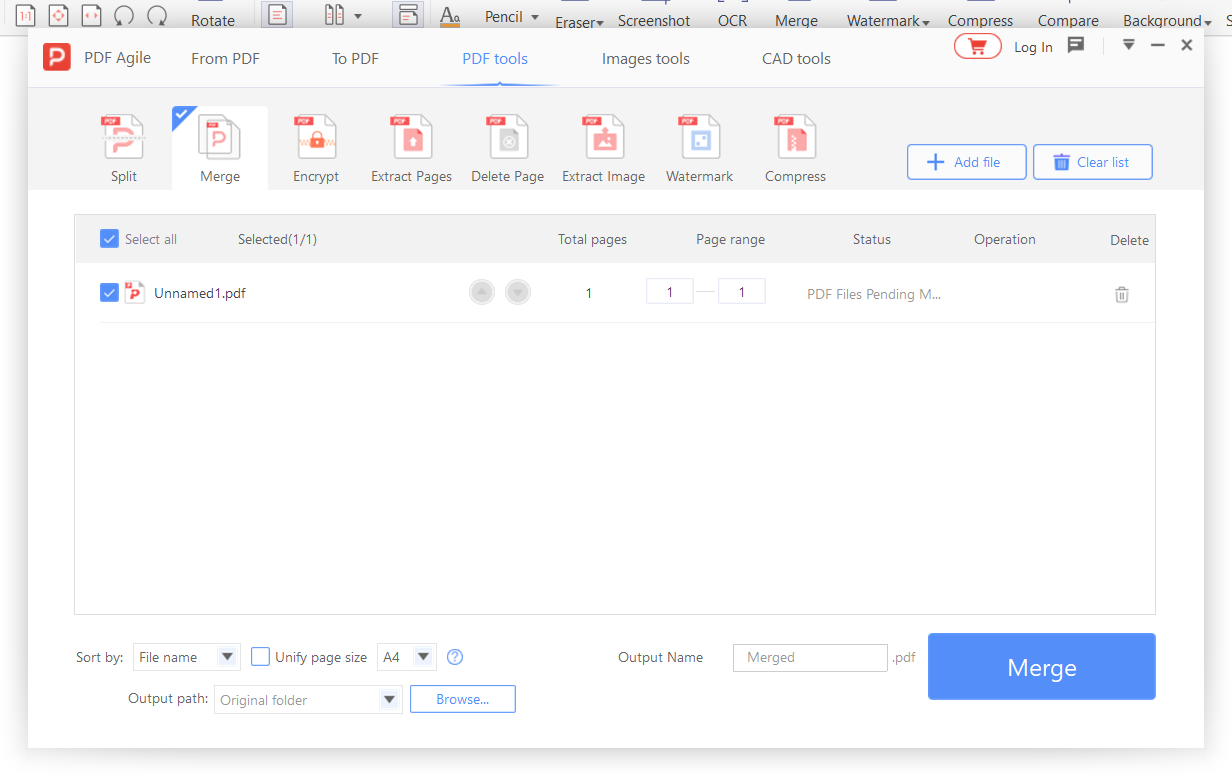
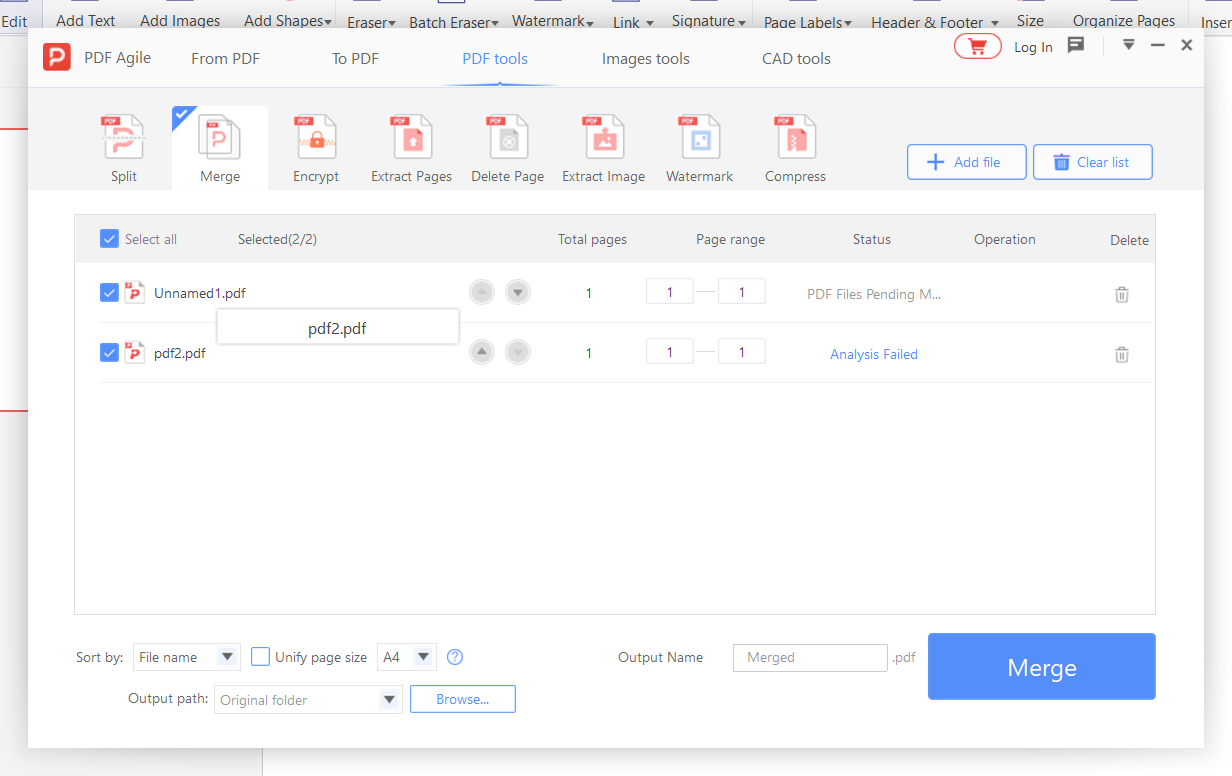
Launch your desktop PDF editor and open the Merge function (sometimes called 'Combine Files'). Drag all source PDFs into the merge window, or use the Add Files button. The files will appear in a list — verify the order matches your intended sequence. Drag files up or down to reorder if needed.
3 Review and Reorder Individual Pages
Most desktop editors let you expand each file in the merge list to see its individual page thumbnails. Use this view to reorder pages across file boundaries — for example, moving a summary page from the end of one file to the beginning of the next. Remove any pages that should not be included in the merged document by selecting them and pressing Delete.
4 Configure Merge Options
Set options for bookmark handling: choose to preserve bookmarks from each file (nested under the filename) or create a new bookmark structure. Set page numbering: continuous across the entire document, or restart for each source file. Set metadata: choose which source file's metadata to use for the merged document, or enter custom metadata.
5 Merge and Verify the Output
Click the Merge or Combine button. Once complete, scroll through the entire merged document to verify: page order is correct, page sizes are consistent or intentionally varied, bookmarks navigate to the right pages, and no pages are missing or duplicated. Save the merged file with a descriptive name.
📋 Quick Recap of the Editing Steps
Print this box or keep it open while you work through the tutorial.
- 1Collect all PDF files you want to merge into a single folder. Rename them with numeric prefixes (01_report.pdf, 02_appendix.pdf, e…
- 2Launch your desktop PDF editor and open the Merge function (sometimes called 'Combine Files'). Drag all source PDFs into the merge…
- 3Most desktop editors let you expand each file in the merge list to see its individual page thumbnails. Use this view to reorder pa…
- 4Set options for bookmark handling: choose to preserve bookmarks from each file (nested under the filename) or create a new bookmar…
- 5Click the Merge or Combine button. Once complete, scroll through the entire merged document to verify: page order is correct, page…
Free Ways to Edit a PDF (and Where They Fall Short)
No desktop editor installed? Here are free alternatives — we list their limitations honestly.
Method 1: PDFsam Basic (Free, Cross-Platform)
Open-source tool specifically designed for merging and splitting PDFs. Drag files into the interface, reorder them, and click Merge. Handles large files well. Limitation: no bookmark reconciliation — bookmarks from individual files are discarded. No visual page-level reordering within files.
Method 2: Preview (macOS)
Open one PDF in Preview, show the sidebar, then drag additional PDFs from Finder into the sidebar. Reorder pages by dragging thumbnails. Save the combined file. Limitation: no bookmark management; page numbering is not unified. Large merges (50+ files) can be slow.
Method 3: Microsoft Word — Insert Object
Open a blank Word document, Insert → Object → Create from File, select each PDF. The PDFs are embedded as objects. Save as PDF. Limitation: each PDF appears as a single object on a page — not true page-level merging. Layout may shift. Not recommended for professional output.
Free Tools vs. a Desktop Editor for This Edit
We tested each method on real documents to give you an honest comparison.
| Method | Edit Text | Layout | Offline | Free |
|---|---|---|---|---|
| Microsoft Edge | New only | ★★★ | ✔ | ✔ |
| macOS Preview | New only | ★★★ | ✔ | ✔ |
| LibreOffice Draw | Full | ★★ | ✔ | ✔ |
| Microsoft Word | Full | ★★ | ✔ | Paid |
| Desktop Editor | Full | ★★★★ | ✔ | Trial |
Verdict: For occasional edits, Edge or Preview work well. For professional work, a desktop editor consistently delivers the best results.
Why Desktop Merging Produces Better Results
Desktop PDF editors perform structural merging at the object level — combining page trees, deduplicating fonts, and reconciling bookmarks into a unified navigation structure. This ensures the merged document behaves as a single file with consistent bookmarks, page numbering, and metadata. They also provide a visual drag-and-drop interface for reordering pages before the final merge.
Online merging tools typically perform a simple file concatenation — appending pages without reconciling their internal structures. Bookmarks from individual files may be lost or nested incorrectly. Page numbering often resets at each merge boundary. And the merged file may carry conflicting metadata from multiple source documents. See the full comparison →
Editing PDFs: Common Questions, Answered
How do I merge PDFs without losing the bookmarks from each file?
Desktop PDF editors with bookmark reconciliation preserve the bookmark structure from each source file and nest them under the source filename in the merged document. For example, merging 'Q1_Report.pdf' and 'Q2_Report.pdf' creates a bookmark hierarchy with 'Q1 Report' and 'Q2 Report' as top-level entries, each containing the original bookmarks from that file. Free tools like PDFsam typically discard all bookmarks during merge.
Can I merge PDFs with different page sizes without distorting them?
Yes. Desktop editors preserve each page's original dimensions during merge — a Letter page stays Letter, an A4 page stays A4. The merged document will contain mixed page sizes, which is normal for international business documents. If you need uniform sizing, use the crop or resize tool after merging to standardize all pages to one dimension.
Why does my merged PDF have duplicate fonts and a larger file size than expected?
Each source PDF embeds its own font subsets. When merged, these subsets are not automatically deduplicated by simple merging tools — the file carries multiple copies of the same font. Desktop editors with optimization features can deduplicate fonts during or after merge. Run the PDF optimizer (compress) function after merging to remove duplicate fonts and reduce file size by 10-30%.
Are there any limitations to this method?
Every method has trade-offs. Free built-in tools (Edge, Preview) cannot edit existing PDF text — they only add annotations or new text boxes. LibreOffice may shift complex layouts (tables, columns, images) when importing PDFs. Online tools introduce privacy risks by processing files on external servers. Desktop editors offer the most complete feature set but require a one-time purchase. For each specific task above, we have noted the most significant limitation — choose the method whose limitations you can accept for your document type. Tested on: Windows 11 24H2, macOS 15 Sequoia, PDF Agile v4.x, LibreOffice 24.x.