How to Redact Sensitive Text in PDF
Want to redact sensitive text in PDF documents? Here's how to get it done. Mark for redaction, apply permanent removal, and verify completeness.
What This PDF Security Guide Covers
This guide was written and tested by Rachel Okafor, a Information Security & Compliance Consultant with 8 years of hands-on experience in document security, encryption, digital signatures, HIPAA compliance. Rachel has 8 years of experience in document security, previously serving as a compliance officer at a healthcare organization.
Drawing a black box over sensitive text in a PDF is not redaction — it is a security illusion. The text underneath remains fully selectable, searchable, and copyable. Anyone with a basic PDF reader can remove the overlay and read the hidden content. True redaction permanently deletes the text from the file's content stream, making recovery impossible.
This guide demonstrates proper redaction techniques using tools that actually remove data, not just hide it. We tested each method by attempting to recover redacted text using forensic techniques, so you can trust that the methods recommended here produce genuinely sanitized documents.
Time to read: 5-7 minutes | Difficulty: Beginner to Intermediate | Last updated: 2026-07-22
Why Document Security Cannot Be an Afterthought
PDF redaction is a legal and regulatory requirement, not just a best practice. FOIA responses, court filings, HIPAA-compliant medical records, and GDPR data subject requests all require permanent removal of protected information. The difference between visual hiding and true redaction is the difference between compliance and a data breach.
Professional redaction involves three steps: marking the content for redaction, applying the redaction (which removes the content from the content stream), and optionally flattening the document to ensure no traces remain in metadata, hidden layers, or the undo history. Skipping the flattening step can leave recoverable data in the file.
Related Security Guides
While reading this page, these related guides may save you time:
Securing the PDF Step by Step with a Desktop Editor
1 Open the PDF and Locate the Redaction Tool
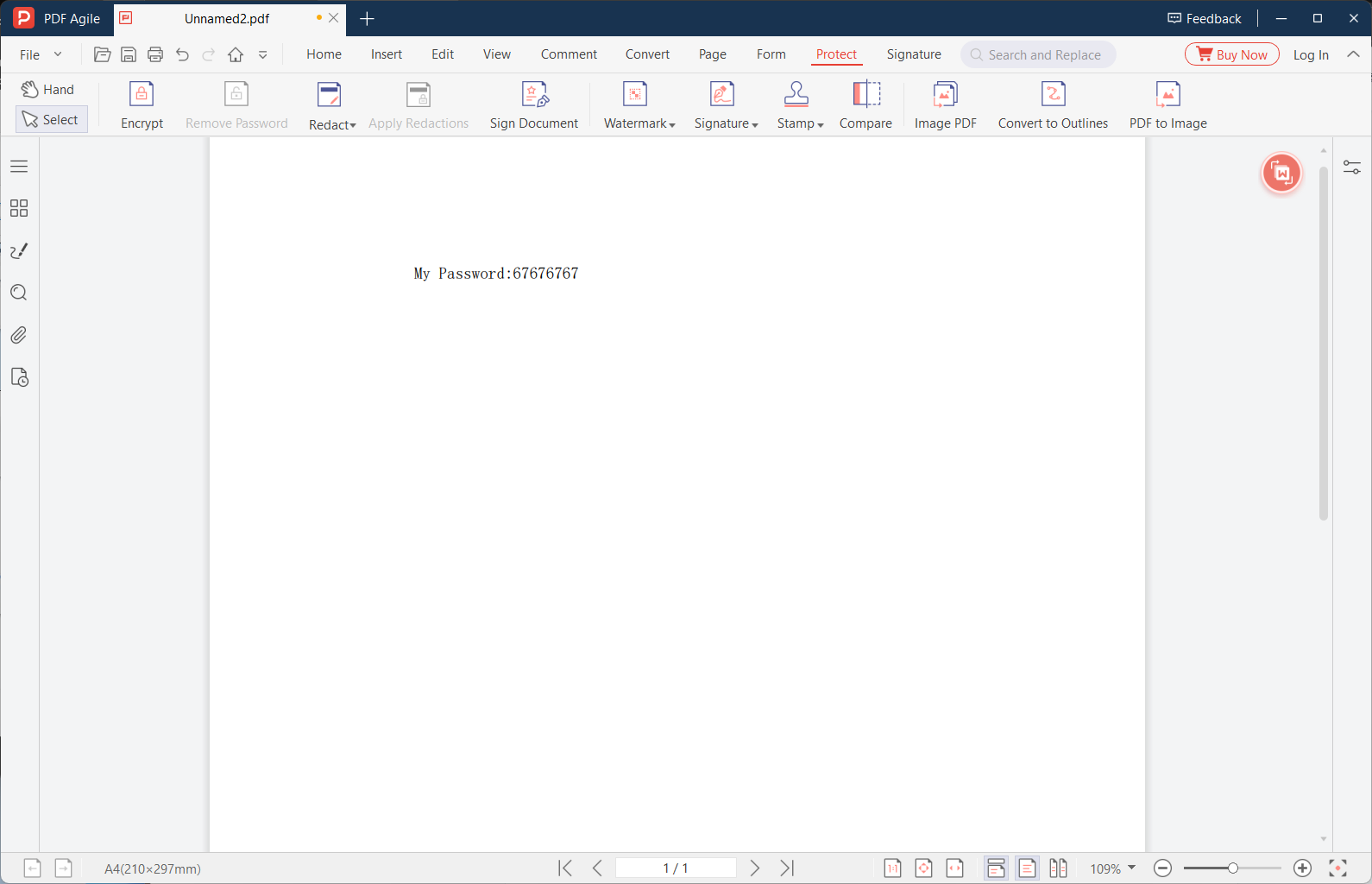
Launch your desktop PDF editor and open the document. Find the Redact tool — it is typically under a 'Protect' or 'Security' menu, represented by a black bar icon. Do not confuse it with the highlight or shape tools, which only add overlays. The redaction tool is specifically designed to permanently remove content.
2 Mark Content for Redaction
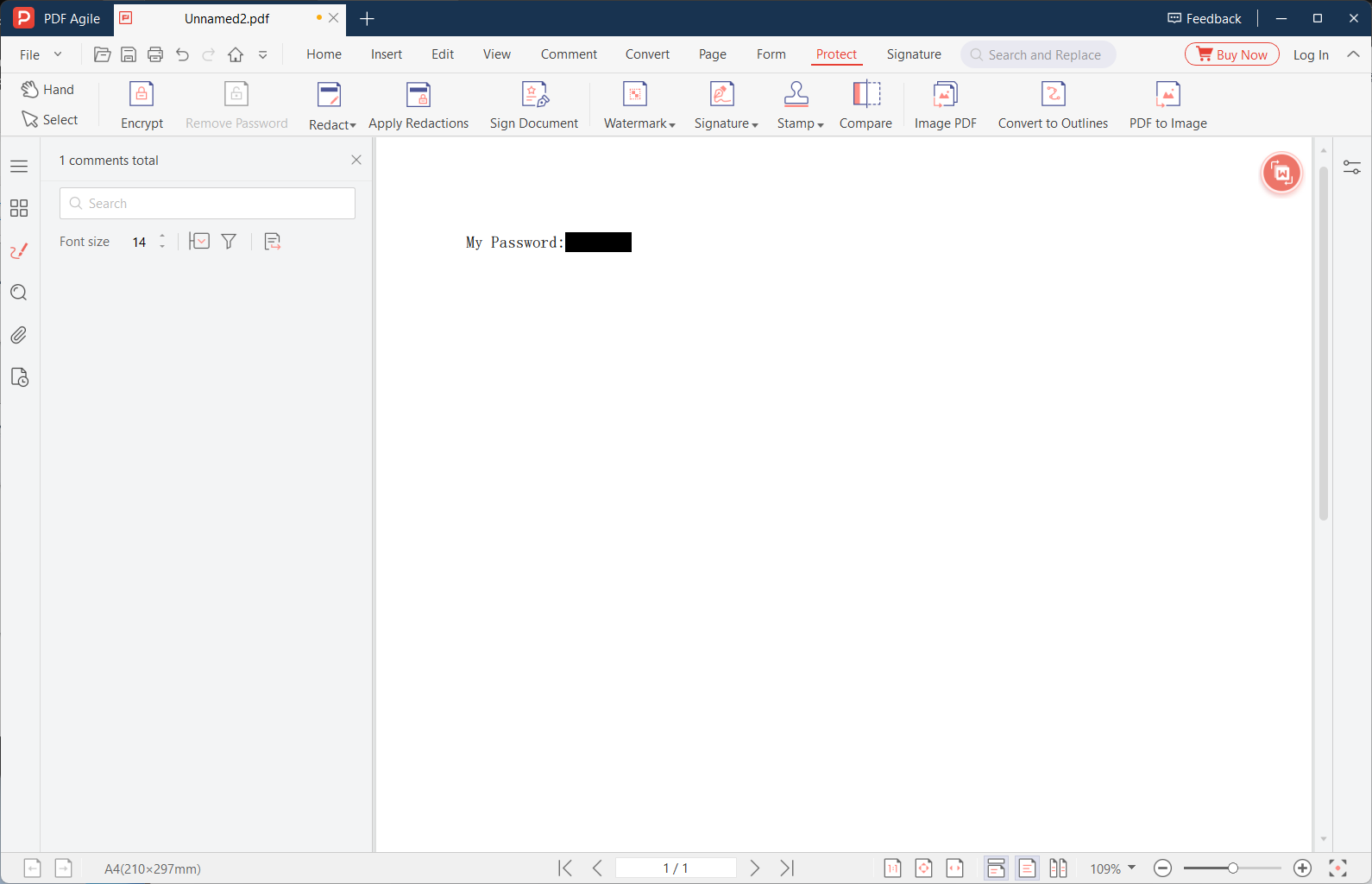
Click and drag over the text or images you want to redact. The selected area will be highlighted (usually in a dark color). For text, you can select individual words, lines, or paragraphs. For search-and-redact, enter the specific terms you want removed, review the found occurrences, and mark them for redaction. Take your time — once redaction is applied, it cannot be undone.
3 Review All Marked Areas Before Applying
Scroll through the entire document and verify every marked area. Check that you have not missed any sensitive information, and that you have not accidentally marked content that should remain visible. Pay special attention to headers, footers, and page margins where recurring sensitive information often appears. This review step is critical because redaction is permanent.

4 Apply the Redaction
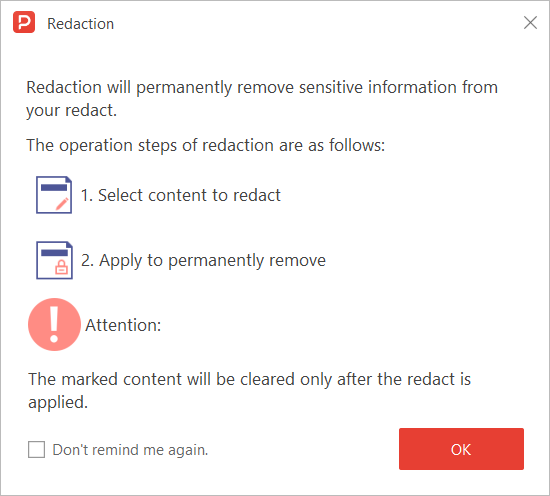
Click the 'Apply Redaction' or 'Apply' button. The editor will remove the underlying content from the file's content stream, replacing it with a black bar (or a blank space, depending on settings). This process may take a few seconds for documents with many redactions. Once applied, the content is permanently gone — there is no undo.
5 Flatten and Sanitize the Document
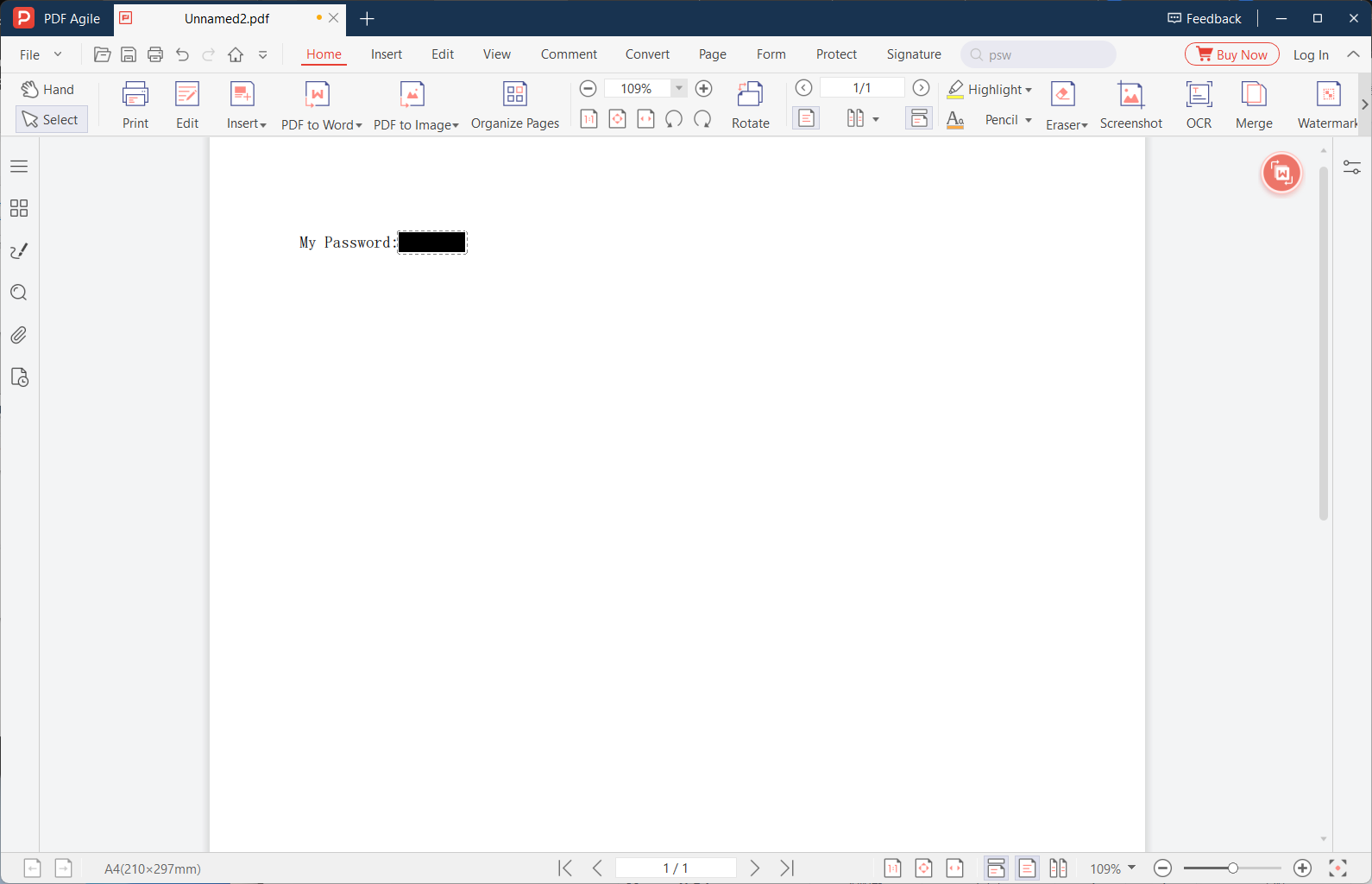
After applying redaction, run the 'Flatten' or 'Sanitize Document' function to remove any traces of redacted content from metadata, hidden layers, and the undo history. Save the redacted file with a new name. Open it in a different PDF reader and attempt to search for redacted terms — if no results appear, the redaction is complete and verified.
📋 Quick Recap of the Security Steps
Print this box or keep it open while you work through the tutorial.
- 1Launch your desktop PDF editor and open the document. Find the Redact tool — it is typically under a 'Protect' or 'Security' menu,…
- 2Click and drag over the text or images you want to redact. The selected area will be highlighted (usually in a dark color). For te…
- 3Scroll through the entire document and verify every marked area. Check that you have not missed any sensitive information, and tha…
- 4Click the 'Apply Redaction' or 'Apply' button. The editor will remove the underlying content from the file's content stream, repla…
- 5After applying redaction, run the 'Flatten' or 'Sanitize Document' function to remove any traces of redacted content from metadata…
Free Ways to Protect a PDF (and Their Limits)
No desktop editor installed? Here are free alternatives — we list their limitations honestly.
Method 1: Preview (macOS) — Redact Tool
macOS Preview includes a Redact tool in the Markup Toolbar. Select text, right-click, and choose Redact. The selected text is removed from the content stream. Limitation: no batch redaction, no search-and-redact, and no redaction of images. Metadata cleanup is not guaranteed.
Method 2: LibreOffice Draw — Manual Deletion
Open the PDF in LibreOffice Draw, select text objects, and press Delete. The objects are removed from the page. Limitation: no dedicated redaction tool, no metadata cleanup, and complex PDFs may import with text split across multiple objects that must be deleted individually.
Method 3: Microsoft Word — Black Rectangle (Not Recommended)
Insert black-filled rectangles over sensitive text in Word, then export to PDF. Warning: this only hides text visually — the underlying text remains in the PDF and can be selected, searched, and copied. Do not use this method for any document requiring genuine redaction.
In-Depth: Scenarios & Best Practices
Redaction: Beyond Drawing Black Boxes
The single most dangerous mistake in PDF redaction is confusing visual hiding with actual data removal. A black rectangle drawn over text hides it from view but leaves the text fully intact in the PDF content stream — selectable, searchable, and extractable by anyone who opens the file. This mistake has caused public data breaches when organizations posted "redacted" PDFs online with text simply hidden under rectangles.
True redaction permanently removes the text from the PDF content stream at the byte level. After redaction, the deleted text cannot be recovered by any forensic method — it literally no longer exists in the file.
Redaction Audit Checklist
Before sharing: (1) Search for each redacted term using Ctrl+F — if any instance is found, redaction was incomplete. (2) Try to select text in the redacted area. (3) Check Document Properties metadata. (4) Open the file in a different PDF reader to verify. (5) Use "Search and Redact" to ensure every occurrence is removed.
Legal and Compliance Standards
U.S. Federal courts require redaction of SSNs, financial account numbers, minor children's names, dates of birth, and home addresses. HIPAA requires removal of 18 specific identifiers. GDPR treats redacted data as pseudonymized. Always verify requirements for your jurisdiction before finalizing.
Security Features Compared: Free vs. Desktop Editor
We tested each method on real documents to give you an honest comparison.
| Method | Security | Compliance | Offline | Free |
|---|---|---|---|---|
| macOS Preview | ★★ | ★★ | ✔ | ✔ |
| LibreOffice | ★★★ | ★★ | ✔ | ✔ |
| Microsoft Word | ★ | ★ | ✔ | Paid |
| Adobe Acrobat Reader | ★★★ | ★★★ | ✔ | ✔ |
| Desktop Editor | ★★★★★ | ★★★★★ | ✔ | Trial |
Verdict: For basic password protection, Preview or LibreOffice work. For certified redaction and digital signatures, a desktop editor is essential.
Why Redaction Requires Desktop Processing
True redaction modifies the PDF's binary content stream — it removes the text objects, font references, and image data associated with the redacted content. This operation can only be performed reliably by a desktop editor that has full access to the file's internal structure. The editor must also remove metadata references, search index entries, and hidden layers that might contain copies of the redacted text.
No online tool provides certified redaction. Browser-based editors can draw overlays but cannot reliably modify the content stream — they operate on a rendered representation of the page, not the underlying PDF structure. For any document subject to legal, regulatory, or compliance requirements, desktop redaction is the only defensible choice. See the full comparison →
PDF Security Questions, Answered
How can I verify that redacted text is truly gone from the PDF?
After redaction, open the PDF in a different reader (not the editor you used). Try selecting the redacted area — nothing should be selectable. Use Ctrl+F to search for keywords from the redacted text — no results should appear. For thorough verification, open the PDF in a text editor like Notepad++ and search for the redacted text — if nothing matches, the data has been removed at the binary level.
Can I redact the same word or phrase across the entire document at once?
Yes. Desktop editors with search-and-redact functionality let you enter a word or phrase, and the tool finds every occurrence across all pages. You can review each occurrence and choose which to redact, or redact all at once. This is essential for redacting recurring information like names, social security numbers, or account numbers throughout a long document.
Does redaction also remove the text from the PDF's metadata and search index?
Professional redaction tools remove the text from the content stream, metadata, and any embedded search index. However, some basic tools only remove the visible content without cleaning up metadata. After redacting, check the PDF's document properties (File → Properties) to verify that no redacted text appears in the title, author, subject, or keywords fields. Run a 'sanitize document' or 'remove hidden information' function if available.
Are there any limitations to this method?
Every method has trade-offs. Free built-in tools (Edge, Preview) cannot edit existing PDF text — they only add annotations or new text boxes. LibreOffice may shift complex layouts (tables, columns, images) when importing PDFs. Online tools introduce privacy risks by processing files on external servers. Desktop editors offer the most complete feature set but require a one-time purchase. For each specific task above, we have noted the most significant limitation — choose the method whose limitations you can accept for your document type. Tested on: Windows 11 24H2, macOS 15 Sequoia, PDF Agile v4.x, LibreOffice 24.x.