How to Sign PDF Electronically (E-Sign Guide)
Sign PDF electronically — this guide covers the fastest methods. Create digital signatures, draw signatures, and upload signature images.
What This PDF Security Guide Covers
This guide was written and tested by James Park, a Legal Document Reviewer with 9 years of hands-on experience in legal documents, annotations, redaction, compliance. James worked as a paralegal for 9 years, where he handled thousands of legal PDFs daily.
Signing a PDF electronically eliminates the need to print, sign, scan, and re-send documents. But not all electronic signatures are equal. A scanned image of your handwriting provides no legal protection — anyone can copy it to another document. A certificate-based digital signature cryptographically verifies your identity and detects any subsequent tampering with the file.
This guide covers four methods for signing PDFs, from simple image-based signatures to legally binding digital certificates. We tested each on contracts, consent forms, and NDAs, evaluating legal validity, tamper detection, and ease of use.
Time to read: 10-12 minutes | Difficulty: Intermediate | Last updated: 2026-07-27
Why Document Security Cannot Be an Afterthought
The term 'electronic signature' covers a spectrum of approaches. At the simplest level, it is an image of your signature placed on the page — legally valid under the US ESIGN Act and EU eIDAS for basic agreements, but offering no proof that you actually signed it or that the document was not altered afterward. At the most secure level, a certificate-based digital signature embeds a cryptographic hash of the document and your identity certificate, creating tamper-evident proof of both signer identity and document integrity.
The choice depends on the document's legal requirements. Internal approvals and low-risk agreements may need only an image signature. Real estate contracts, government filings, and cross-border agreements typically require certificate-based signatures. Understanding the difference prevents using an inadequate method for a document that needs stronger protection.
Related Security Guides
While reading this page, these related guides may save you time:
Securing the PDF Step by Step with a Desktop Editor
1 Open the PDF and Access the Signature Tool
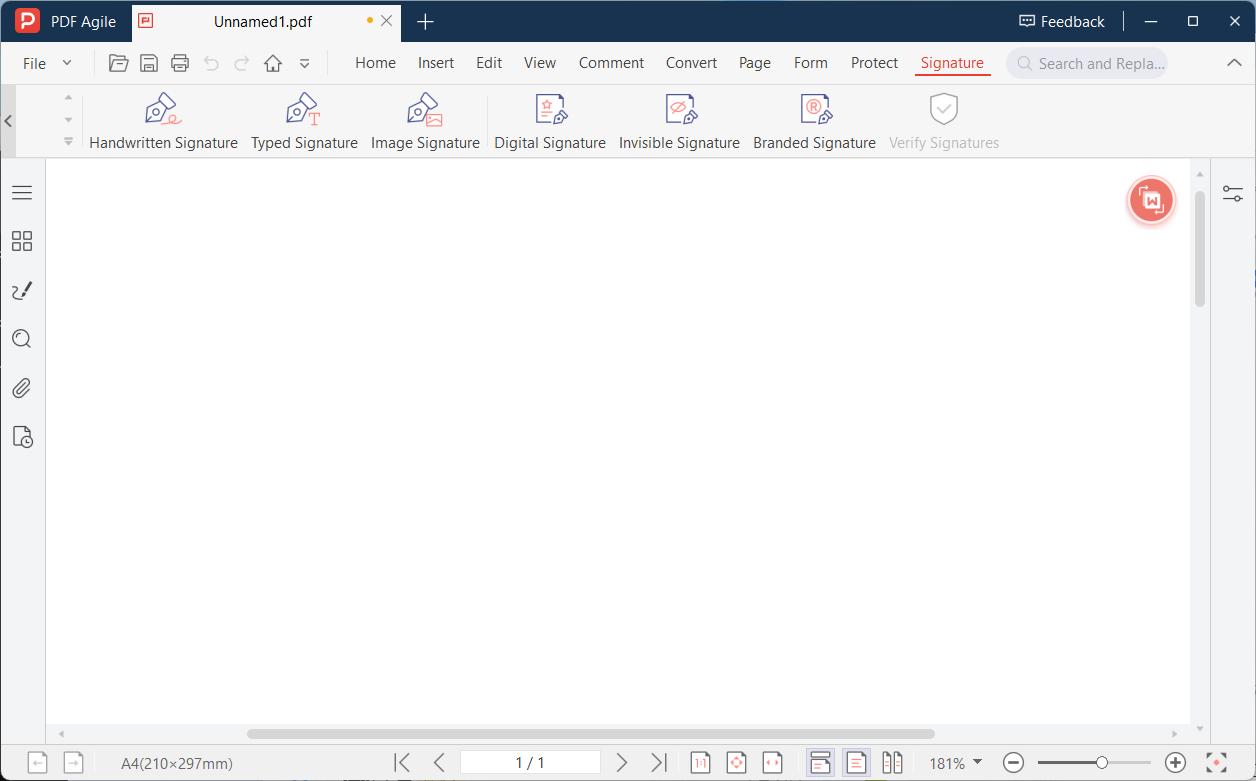
Launch your desktop PDF editor and open the document. Navigate to the Sign or Certify menu — look for options labeled 'Sign', 'Digital Signature', or 'Certify Document'. If you are creating an image signature, look for 'Fill and Sign' or 'Place Signature'. Choose the appropriate signature type based on the document's legal requirements.
2 Create or Select Your Signature
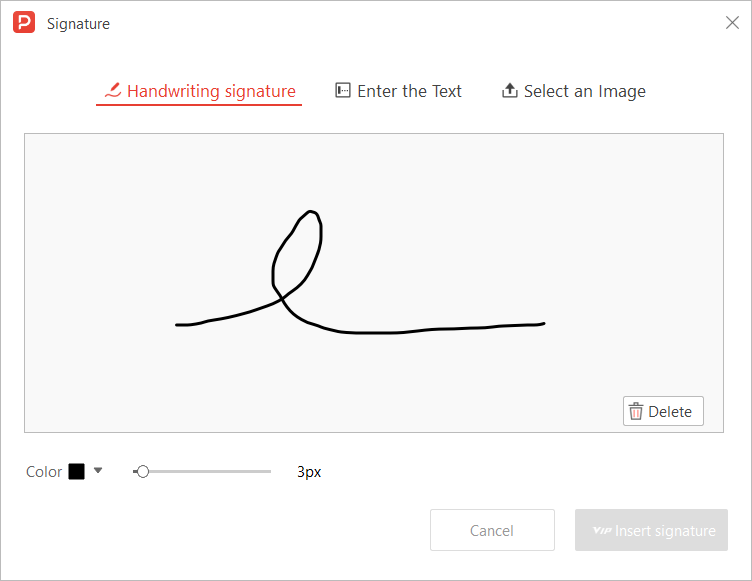
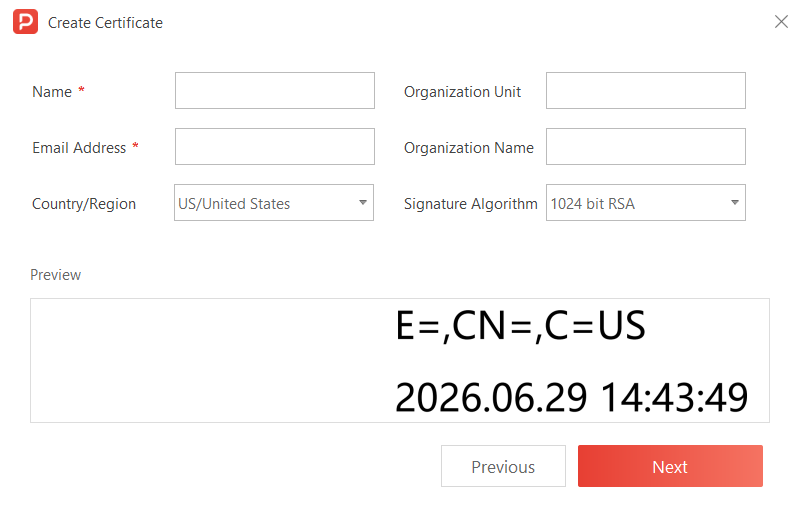
For an image signature: draw your signature using the mouse or trackpad, or upload a scanned image of your signature. For a digital signature: select your installed digital certificate from the certificate list. If no certificate is installed, you will need to obtain one from a Certificate Authority first. Position the signature on the page by clicking where you want it to appear.
3 Configure Signature Appearance and Properties
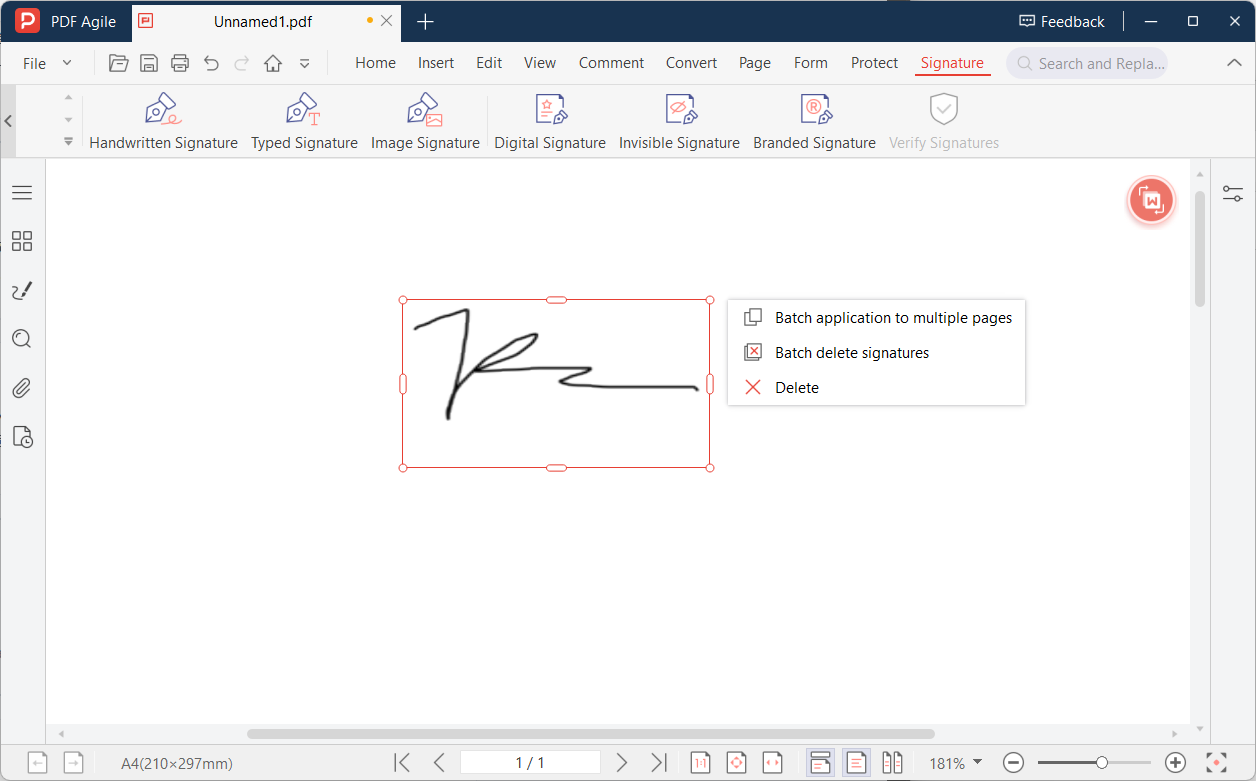
Customize the signature's visual appearance: choose whether to display your name, date, location, and reason for signing. Select the certificate to use (if you have multiple). Set the certificate's timestamp server if time-stamping is required for legal validity. Choose whether to lock the document after signing to prevent further changes.
4 Apply the Signature
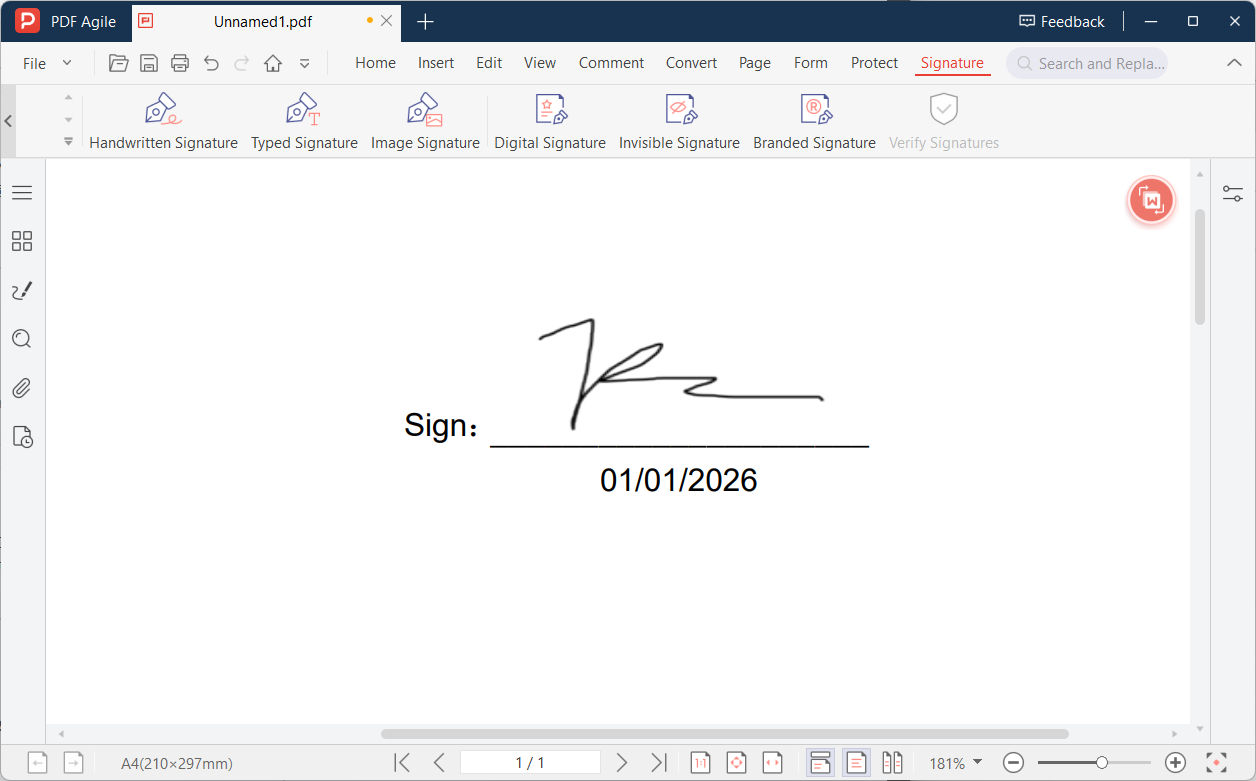
Click 'Sign' or 'Apply'. For digital signatures, the editor will create a cryptographic hash of the document, sign it with your private key, and embed the signature and certificate in the PDF. The document is now tamper-evident — any change after signing will invalidate the signature. Save the signed file with a new name to distinguish it from the unsigned version.
5 Verify the Signature
Open the signed PDF in Adobe Acrobat Reader or your desktop editor. Look for the signature panel or trust indicator. A valid signature will show a green checkmark with 'Signature Valid' and your verified identity. Click the signature to view details: signing time, certificate issuer, and document integrity status. If the signature shows a warning or error, the document was modified after signing.
📋 Quick Recap of the Security Steps
Print this box or keep it open while you work through the tutorial.
- 1Launch your desktop PDF editor and open the document. Navigate to the Sign or Certify menu — look for options labeled 'Sign', 'Dig…
- 2For an image signature: draw your signature using the mouse or trackpad, or upload a scanned image of your signature. For a digita…
- 3Customize the signature's visual appearance: choose whether to display your name, date, location, and reason for signing. Select t…
- 4Click 'Sign' or 'Apply'. For digital signatures, the editor will create a cryptographic hash of the document, sign it with your pr…
- 5Open the signed PDF in Adobe Acrobat Reader or your desktop editor. Look for the signature panel or trust indicator. A valid signa…
Free Ways to Protect a PDF (and Their Limits)
No desktop editor installed? Here are free alternatives — we list their limitations honestly.
Method 1: Preview (macOS) — Image Signature
Open the PDF in Preview, click the Markup Toolbar, then the Sign button. Draw your signature on the trackpad or hold up a signed paper to the camera. Drag the signature to the desired position. Limitation: image-based only — no cryptographic verification, no tamper detection, no certificate support.
Method 2: Adobe Acrobat Reader (Free) — Fill and Sign
Open the PDF in Acrobat Reader, click 'Fill and Sign', type or draw your signature, and place it on the page. Limitation: creates an electronic signature (image), not a digital signature (cryptographic). Certificate-based signing requires the paid Pro version.
Method 3: LibreOffice Draw — Draw Signature
Open the PDF in LibreOffice Draw, use the Freeform Line tool to draw your signature, then export as PDF. Limitation: no signature validation, no certificate support, and the drawn line is a vector object that can be moved or deleted by anyone.
Electronic Signatures vs. Digital Signatures: Know the Difference
Electronic signatures (e-signatures) are visual representations of your signature — a drawing, an image, or a typed name styled as handwriting. They convey intent to sign but provide no cryptographic proof of identity or tamper detection. E-signatures are legally valid for most everyday documents (employment contracts, rental agreements, permission slips) under laws like the ESIGN Act (US) and eIDAS (EU).
Digital signatures (certificate-based) use public-key cryptography to authenticate the signer's identity and detect any post-signing modifications. They are legally REQUIRED for certain regulated documents: government filings, pharmaceutical submissions, some court documents, and transactions requiring the highest level of identity assurance. A digital signature certificate must be issued by a trusted Certificate Authority (CA).
When to use which: For most business and personal documents, an e-signature is sufficient and legally binding. Use a digital signature when the document explicitly requires it (e.g., "must be digitally signed"), when tamper detection is critical, or when the recipient (government agency, regulated industry) mandates certificate-based signatures.
Signature Best Practices
- Create a clean signature file: Sign on a blank white piece of paper with a dark pen, photograph or scan at 300+ DPI, crop tightly to the signature, save as PNG with transparent background. This produces the crispest signature insertion.
- Size consistently: Scale your signature to approximately 2-3 inches wide for letter-sized documents — this matches a natural hand signature size.
- Never share your raw signature file: Anyone with your isolated signature PNG can paste it onto other documents. After inserting, keep the original file secured. Some desktop editors store signatures in encrypted local databases rather than as standalone image files.
- Timestamp matters: Courts and auditors check whether the signature timestamp is plausible. Always sign with the current date — backdating or post-dating can invalidate the document if discovered.
- Check signature appearance on different backgrounds: A signature with a white background looks jarring on colored paper. Use a signature with transparency, or use a desktop editor's "draw signature" feature which creates native vector signatures that adapt to any background.
In-Depth: Scenarios & Best Practices
Signature Workflow Scenarios
Signing an NDA before a meeting. You receive an NDA at 8:45 AM for a 9:00 AM meeting. Open the PDF, click the signature field, draw your signature (or select your saved digital signature), place it in the designated area, and save. The entire process takes under 60 seconds — no printing, no scanning, no email ping-pong.
Multi-party contract with signature ordering. A vendor agreement requires the client to sign first, then the vendor countersigns. Desktop editors with signature field ordering enforce this workflow: the second signature field only activates after the first is applied and saved.
Verifying a signed document's integrity. You receive a signed contract and want to confirm nothing was altered. Open the document in any PDF reader that supports signature validation. Click the signature — the reader checks the document's hash and displays a checkmark if unchanged, or a warning if content was modified post-signing.
Signature Security Best Practices
Use certificate-based signatures for legal documents. Hand-drawn signatures and image-based signatures offer no cryptographic protection. Certificate-based digital signatures embed a cryptographic hash of the document content, making post-signature tampering immediately detectable.
Never share your private signing key. Your digital signing certificate consists of a public key (shared with recipients) and a private key (stored only on your device). Sharing the private key allows others to sign documents as you.
Security Features Compared: Free vs. Desktop Editor
We tested each method on real documents to give you an honest comparison.
| Method | Security | Compliance | Offline | Free |
|---|---|---|---|---|
| macOS Preview | ★★ | ★★ | ✔ | ✔ |
| LibreOffice | ★★★ | ★★ | ✔ | ✔ |
| Microsoft Word | ★ | ★ | ✔ | Paid |
| Adobe Acrobat Reader | ★★★ | ★★★ | ✔ | ✔ |
| Desktop Editor | ★★★★★ | ★★★★★ | ✔ | Trial |
Verdict: For basic password protection, Preview or LibreOffice work. For certified redaction and digital signatures, a desktop editor is essential.
Why Desktop Signing Is More Secure Than Browser-Based Tools
Desktop PDF editors store your digital certificate and signature profile locally on your computer — not on a server. When you sign, the cryptographic operation happens on your CPU, and the signed file never leaves your machine. This is the most secure signing model because your private key is never transmitted over the internet.
Online signing services store your signature image and (in some cases) your signing certificate on their servers. While most use encryption, your private key is accessible to the service provider — a potential vulnerability if the service is compromised. For documents requiring non-repudiation (proof that you and only you signed), local certificate storage on a desktop is the standard. See the full comparison →
PDF Security Questions, Answered
What is the difference between an electronic signature and a digital signature?
An electronic signature is any electronic indication of intent to sign — typically an image of your handwritten signature. It is legally valid under ESIGN and eIDAS but provides no cryptographic proof of identity or tamper detection. A digital signature uses a PKI certificate to embed a cryptographic hash of the document and your identity. If anyone changes a single byte of the document after signing, the signature validation fails — providing strong evidence of tampering.
How do I get a digital certificate for signing PDFs?
You can purchase a digital ID from a Certificate Authority (CA) like DigiCert, GlobalSign, or Adobe Approved Trust List providers. The certificate is issued after identity verification (ranging from email confirmation to notarized document checks, depending on the assurance level). Once issued, you install the certificate on your computer and use it within your PDF editor's digital signature function. Some countries also issue free government-backed digital IDs.
Can someone forge my digital signature if they copy my signature image?
No. A digital signature is not an image — it is a cryptographic operation that uses your private key (stored on your computer) to create a unique hash of the document. Even if someone has your signature image, they cannot create a valid digital signature without your private key. This is the fundamental security advantage of digital signatures over electronic signatures.
Are there any limitations to this method?
Every method has trade-offs. Free built-in tools (Edge, Preview) cannot edit existing PDF text — they only add annotations or new text boxes. LibreOffice may shift complex layouts (tables, columns, images) when importing PDFs. Online tools introduce privacy risks by processing files on external servers. Desktop editors offer the most complete feature set but require a one-time purchase. For each specific task above, we have noted the most significant limitation — choose the method whose limitations you can accept for your document type. Tested on: Windows 11 24H2, macOS 15 Sequoia, PDF Agile v4.x, LibreOffice 24.x.